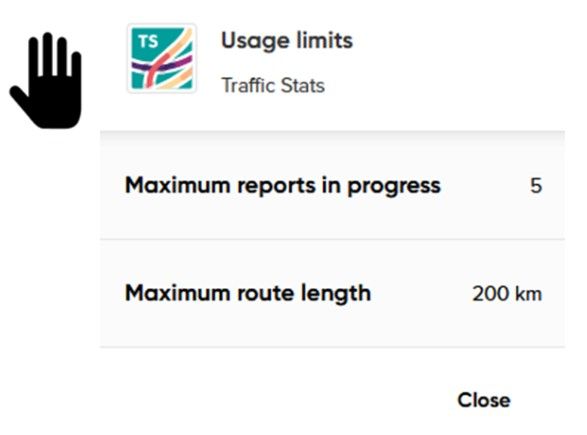
Limits, release notes, and user guide

You can check your limits, view release notes and get linked to the user guide in two ways:
1. Through Move dashboard
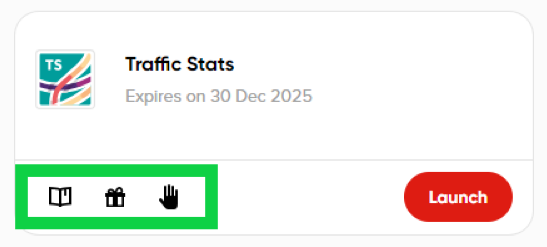
2. And, within the Traffic Stats application
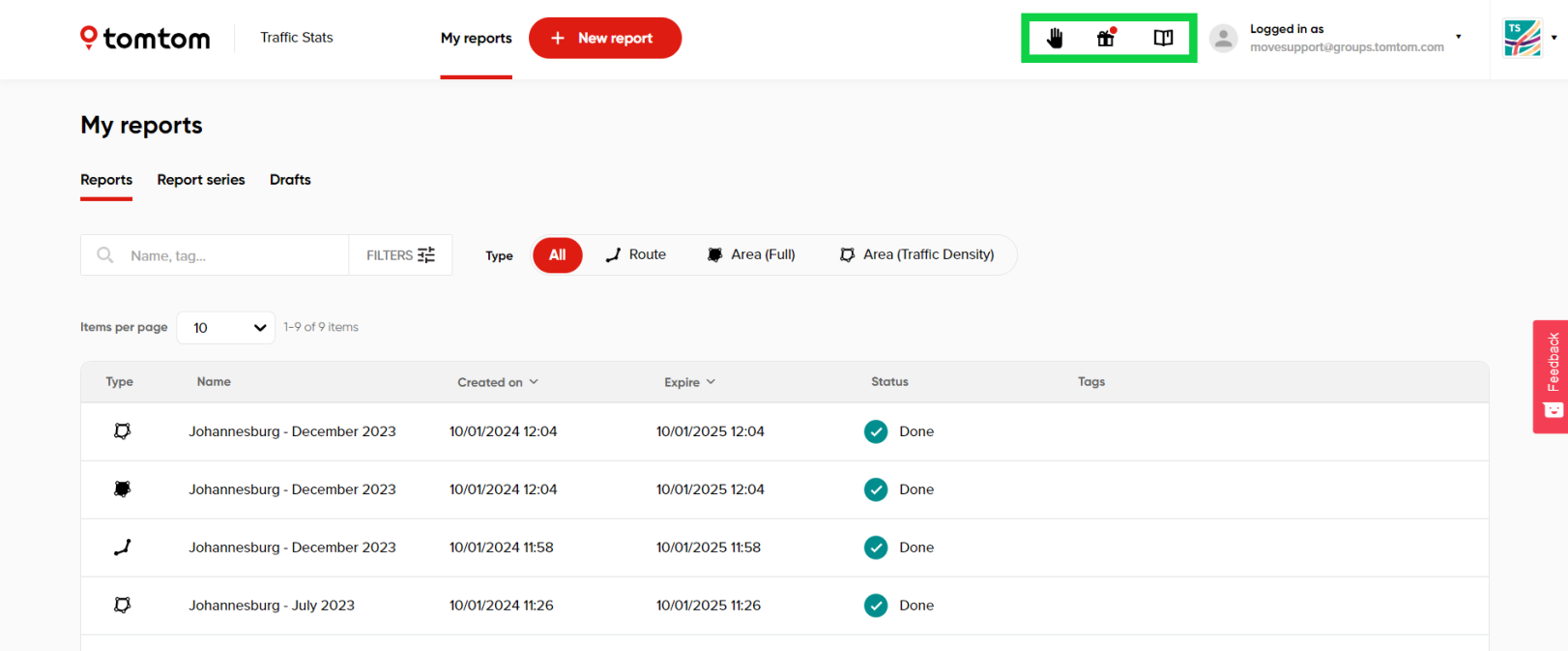
User guide
All the instructions, photos and examples needed to create, view, download, clone, compare and share reports can be found in the user guide.
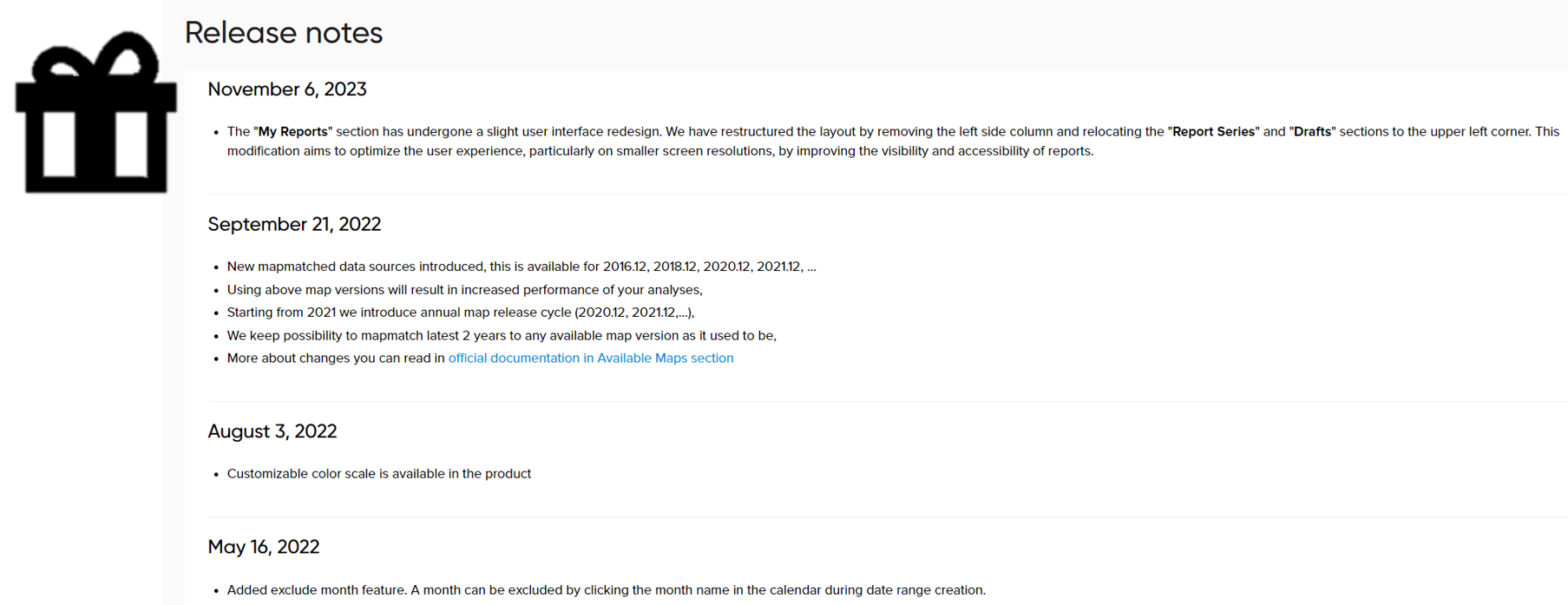
Release notes
The newest information on changes and new features in Traffic Stats can be found at https://ts.tomtom.com/release-notes .
The Release Notes section is also available for API users at https://developer.tomtom.com/traffic-stats/documentation/product-information/release-notes .
Usage limits
Within Usage Limits, you can monitor days remaining on your account, the number of reports created and available, maximum route length, date range limitation and the maximum number of reports in progress.