Comparing the reports results
Traffic Stats has a very useful feature - Compare report, which allows comparing two different analyses based on date and time ranges. However, the polygons and map versions within those analyses should be equal.
There are two places where you can access the Compare feature:
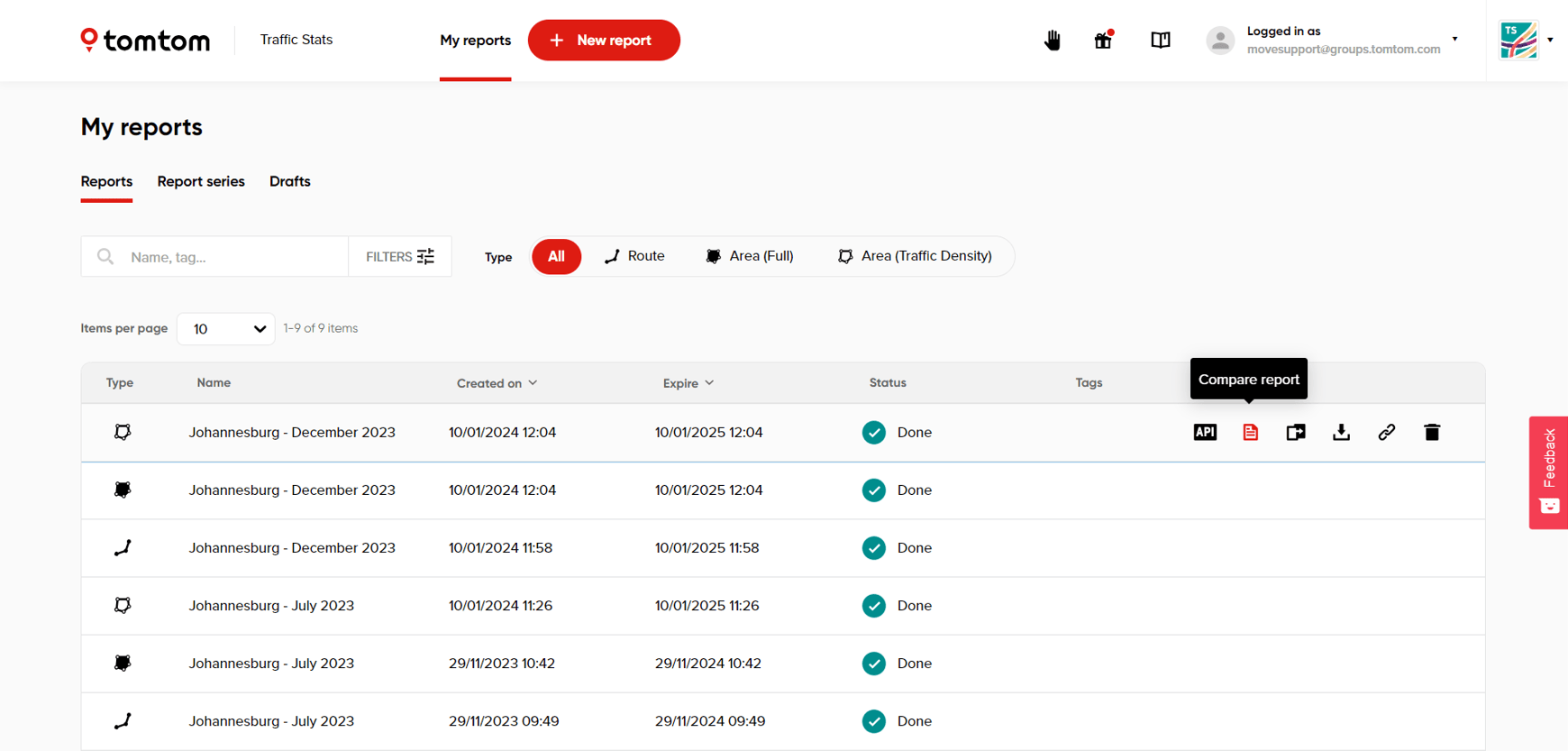
1. Within the My reports tab by hovering over each report.
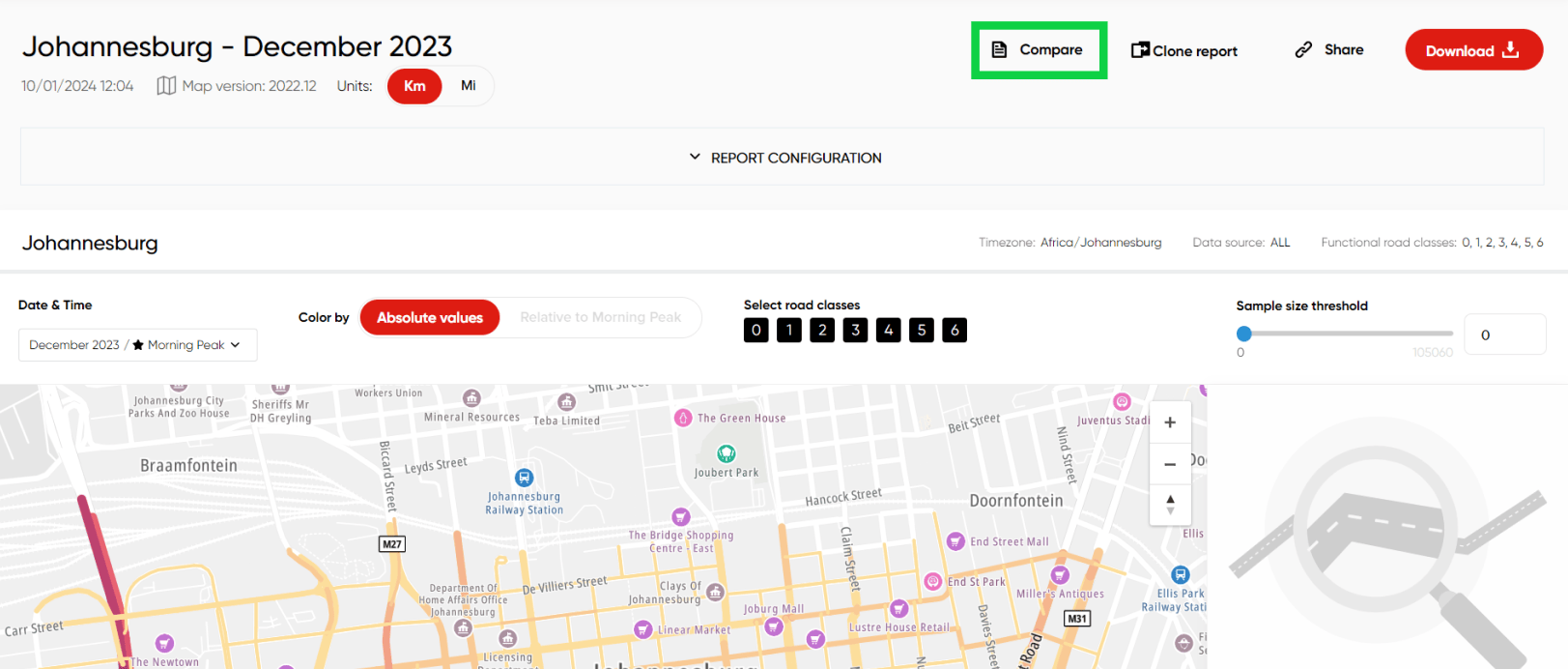
2. Or, it is also possible to compare a report from a completed analysis perspective.
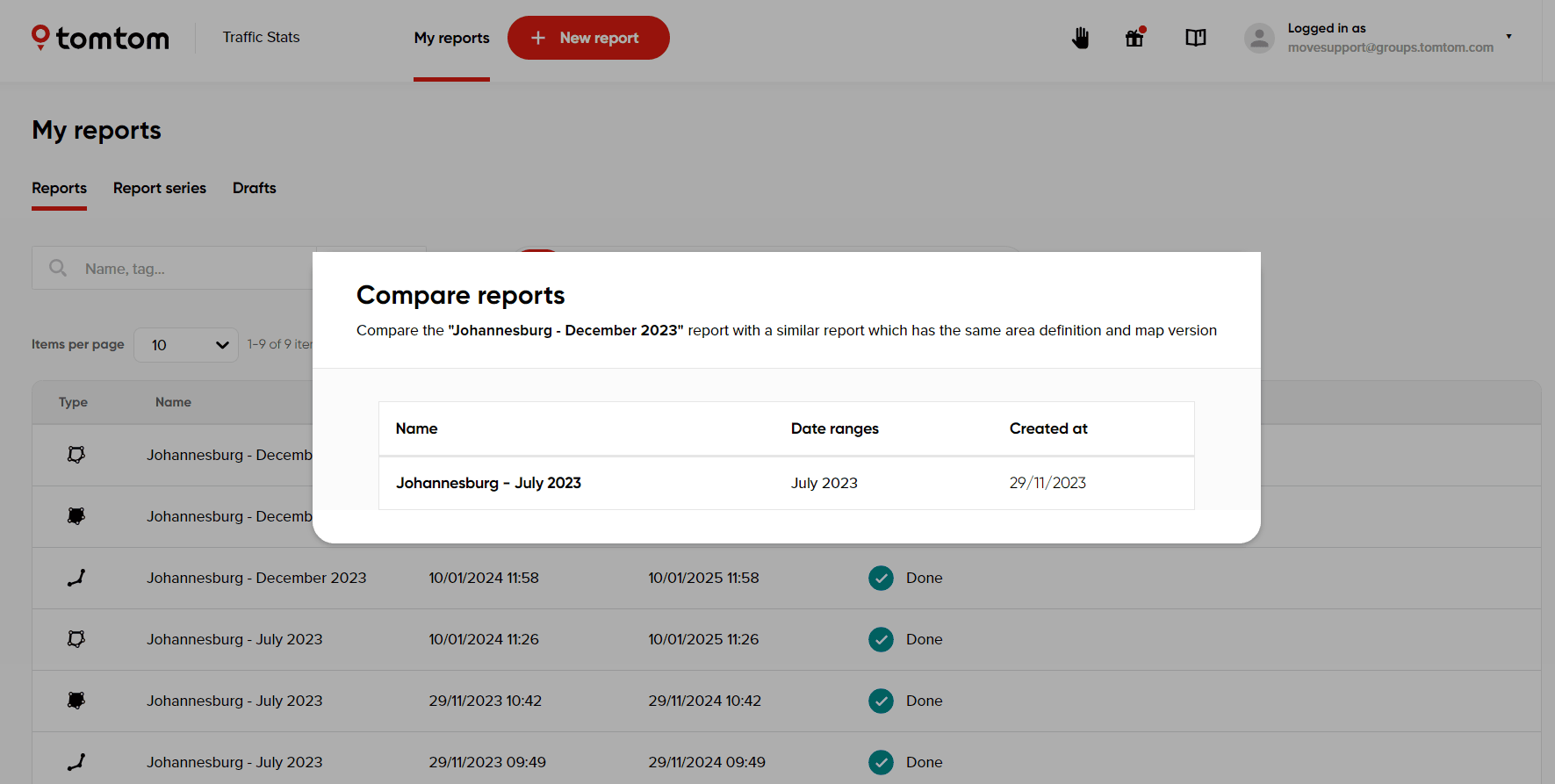
Whenever the user clicks Compare report, the application suggests a list of the applicable analyses the user can compare the analysis with.
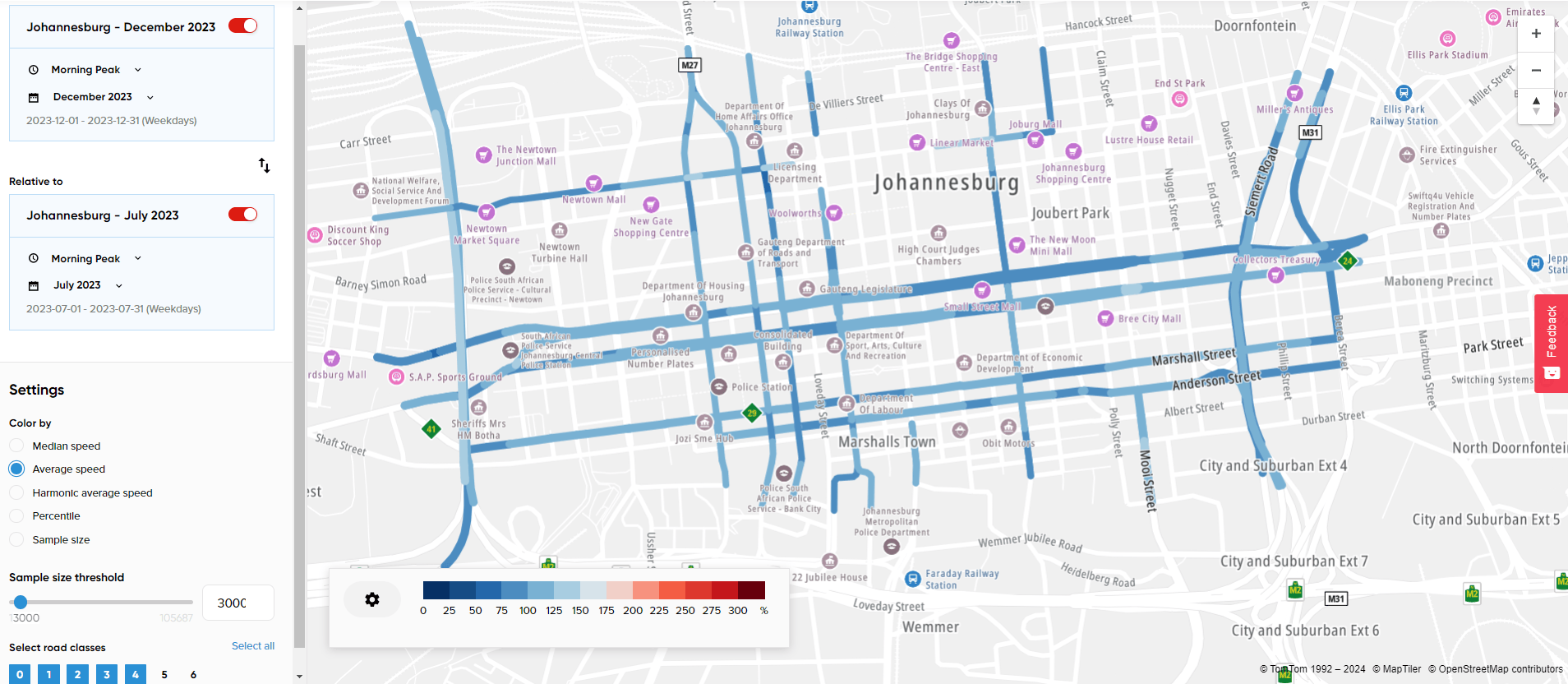
In the comparison view, the user will get the same data for every segment, such as direction, sample size, median and average speeds, etc. It is also possible to set the settings in the way the interactive map will be colored and filter out the segments with a low number sample size or with a specific road class.