Search
Overview
Users can perform a free-text search to find available addresses and points of interest (POIs). From the search results, they can select a destination for route guidance.
Free text search
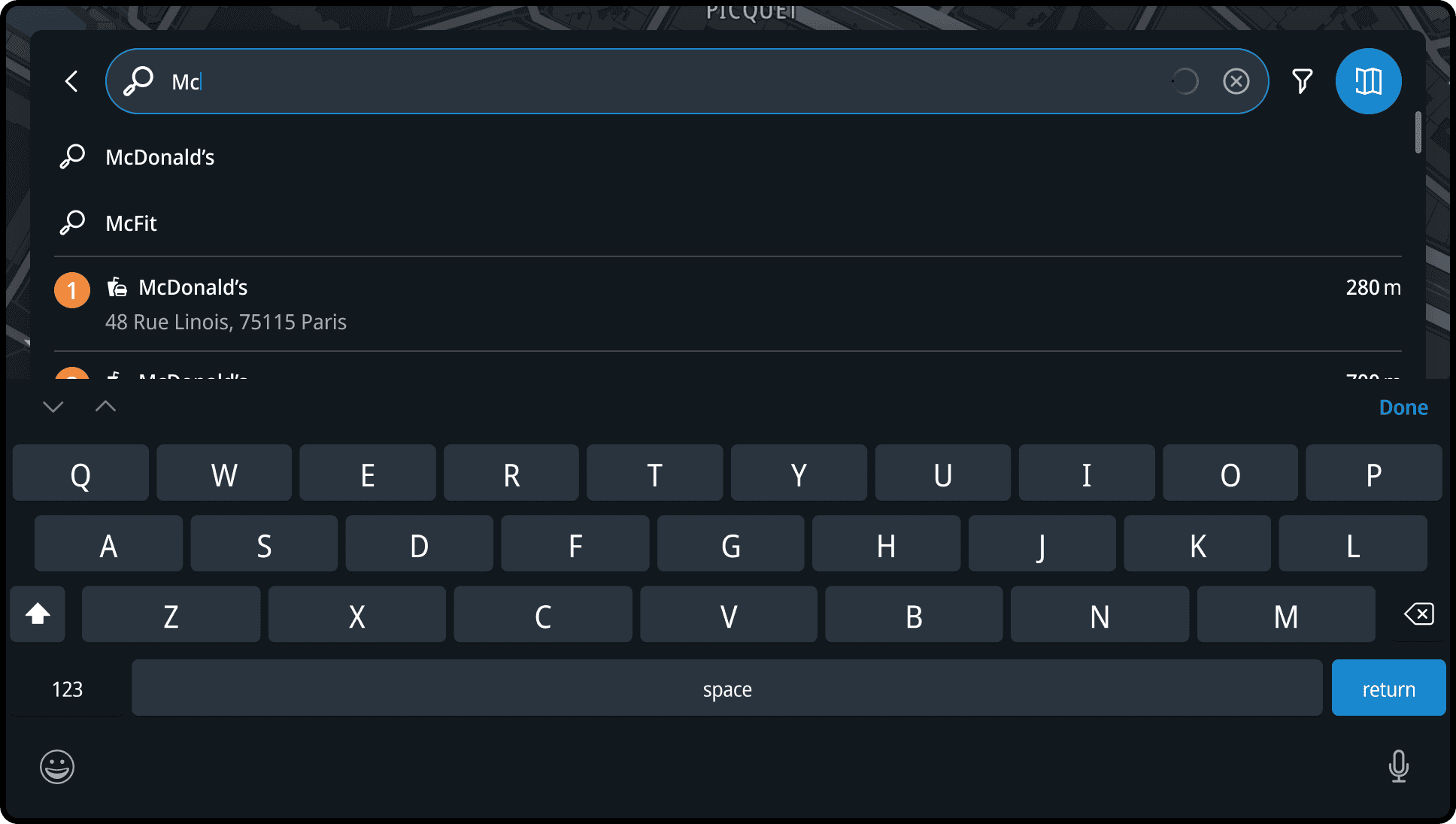
The free text search is initiated right after the user types their first character. You can find a location by searching for the following:
- Specific address: e.g. Oosterdoksstraat 114, Amsterdam.
- Partial address: e.g. find a street in a city: P.C. Hooftstraat, Amsterdam or Champs Elysées, Paris.
- Type of location: e.g. find a restaurant or petrol station.
- Name of a location: e.g. find a Starbucks.
- Postcode: e.g. 1011DK, resulting in Oosterdoksstraat, Amsterdam.
- City name: e.g. find London centre.
- Intersection: e.g. New York St & W Redlands Blvd.
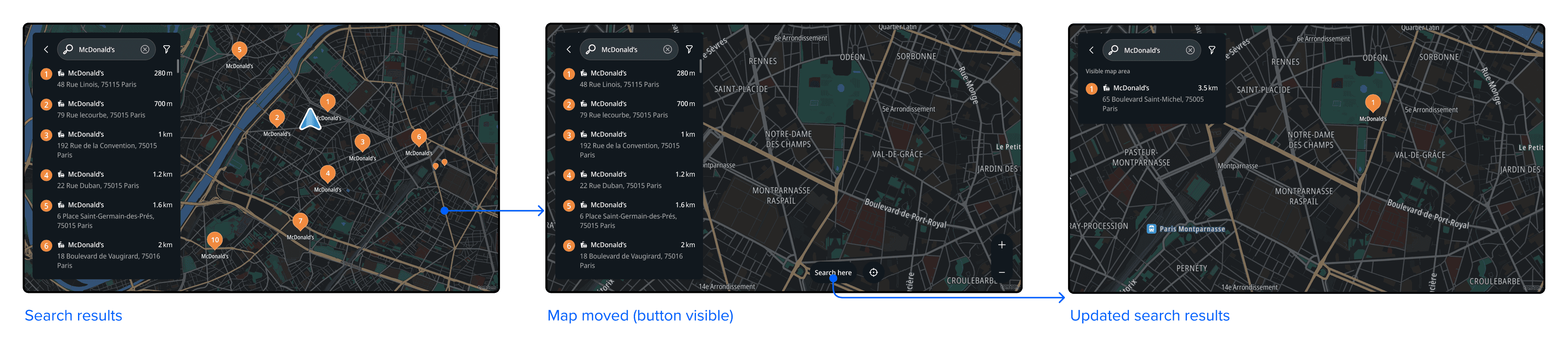
Search here
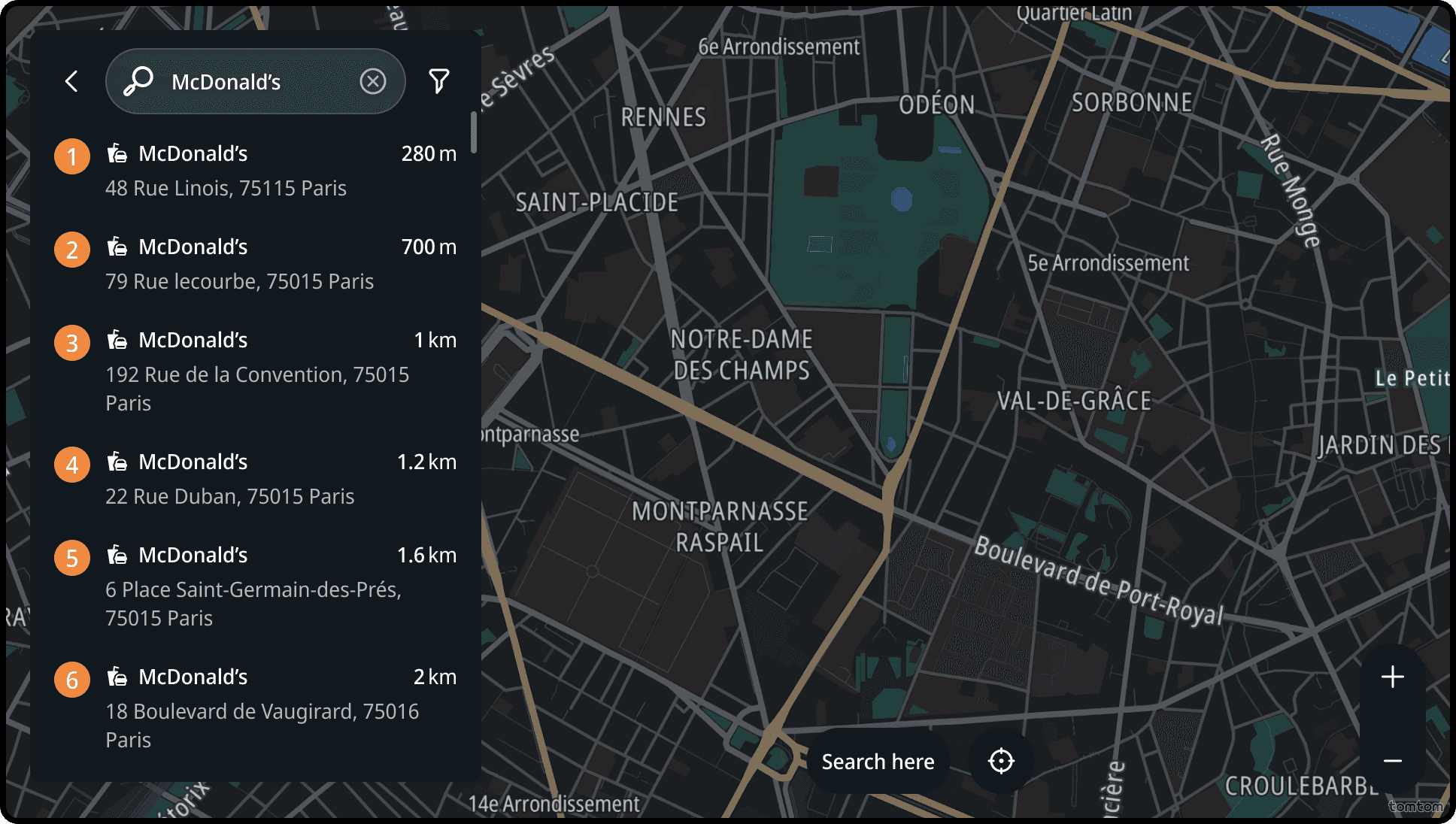
This feature allows users to narrow down their search to a specific map area. After submitting, they can move the map to a different area and tap “Search here”. This action triggers another search with the same query but limited to the new visible map area.
Points of Interest (POIs) search
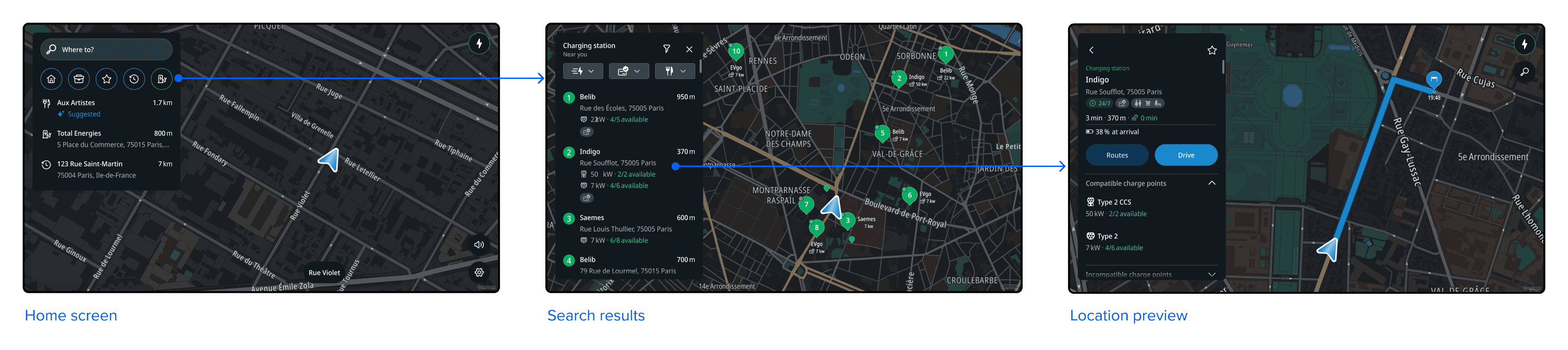
POI search can be activated from the Destination Entry Panel or during the first step in the search flow.
This type of search will reveal nearby locations within a certain POIs category (e.g. Parking,
Charging or Restaurants). Tapping a result opens a preview panel which contain more relevant
details about the location.
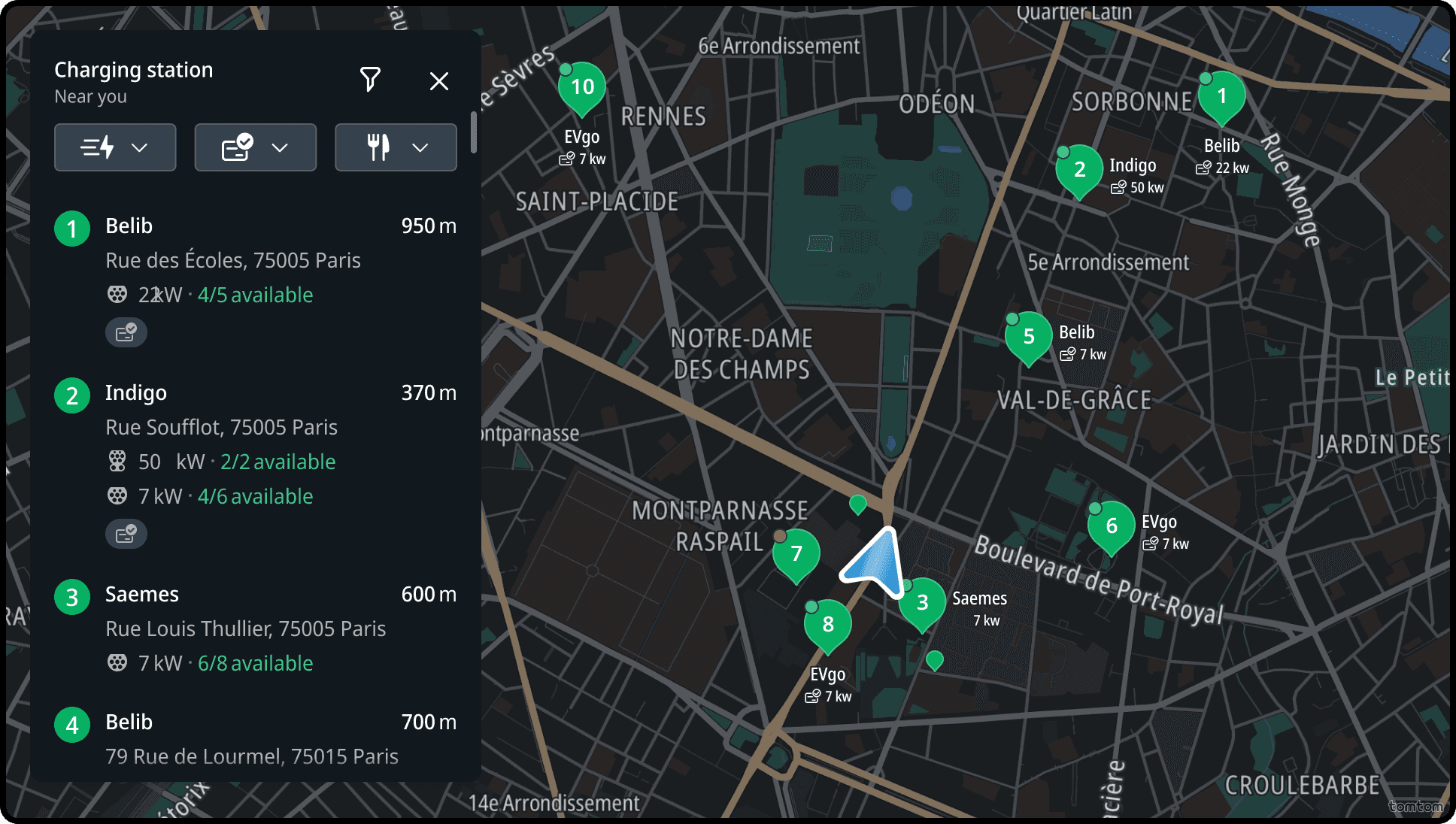
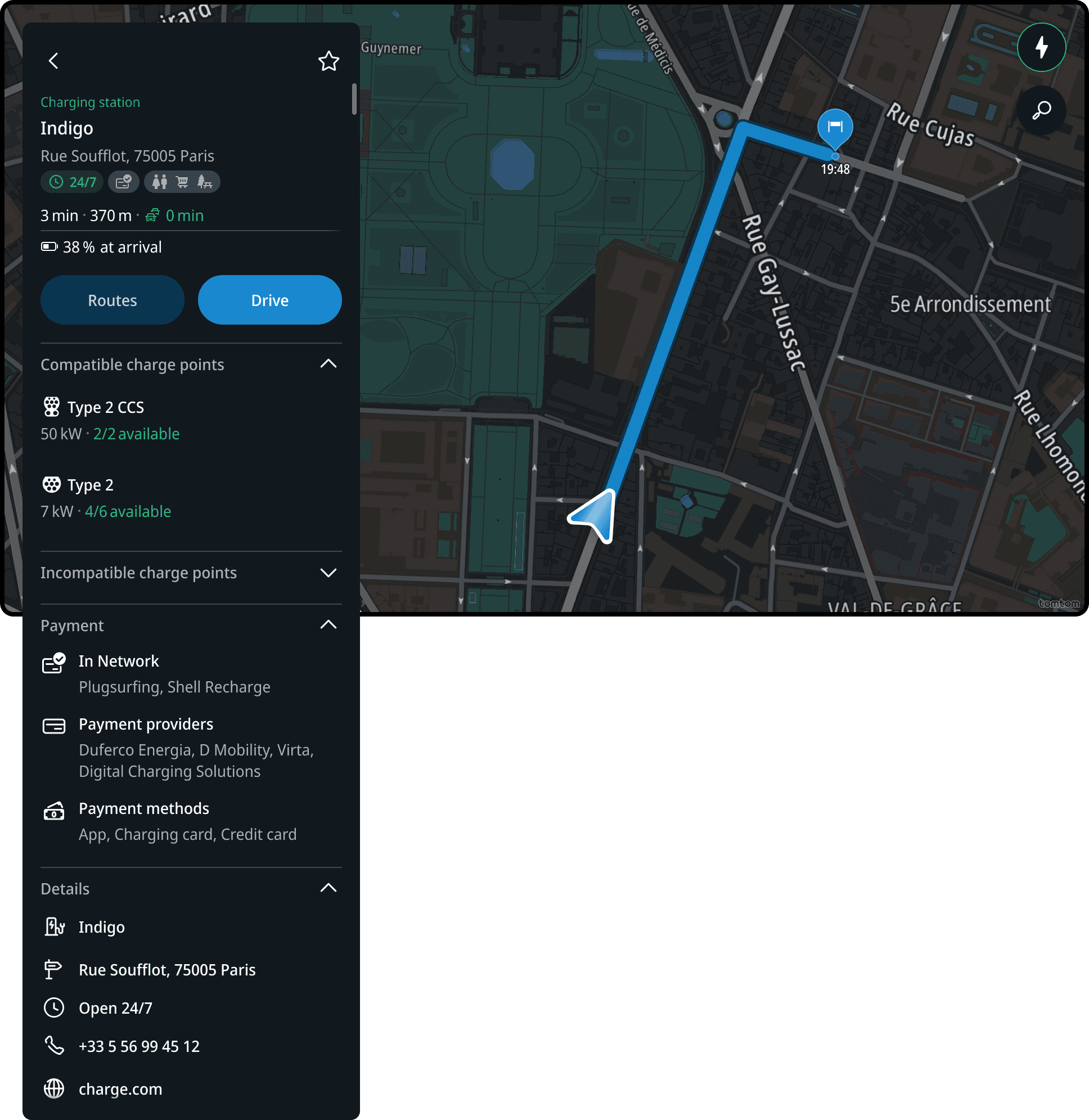
Search results for parking, charging stations and fuel stations can be accompanied with relevant dynamic data that helps users find relevant places faster. For example, Charging Stations will show availability, compatible plug types, accepted payment methods and opening hours.
Filtering search results
To help users find the charging stops they need, several filters are available to refine search results:
- Search Area: A general filter applicable to all searches.
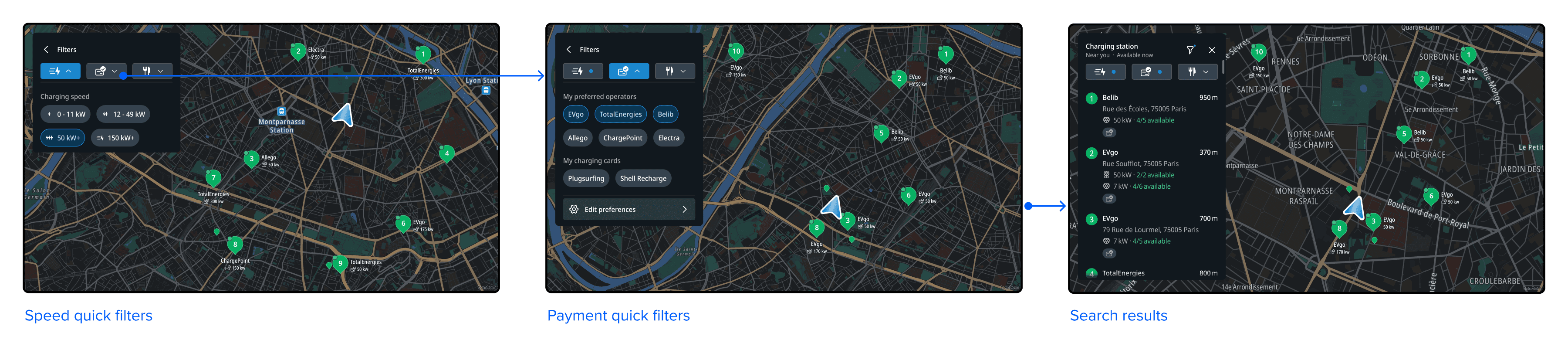
- Charging Speed: Filter based on the speed of charging available.
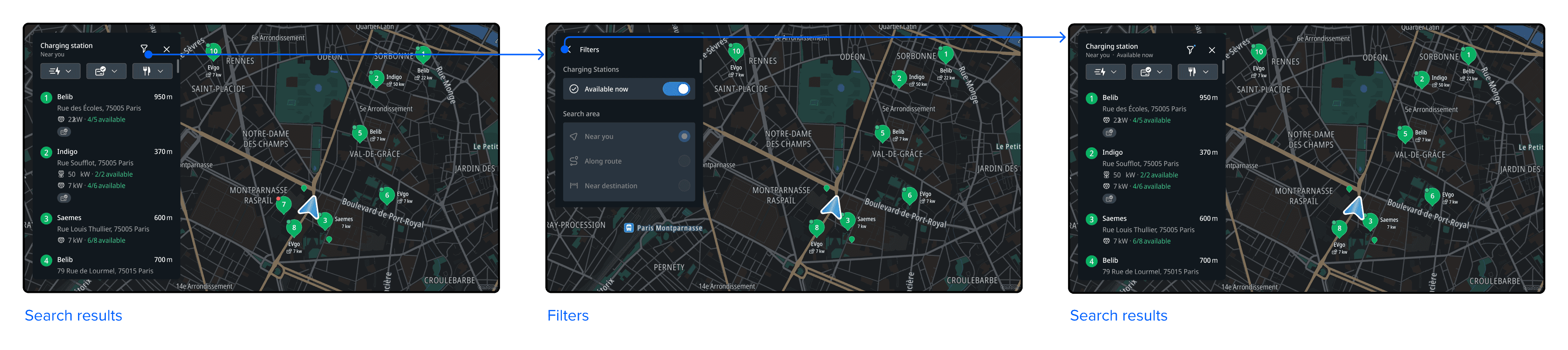
- Available Now: Identify charging stops that are currently accessible.
- Payment Preference: Select charging stops based on preferred payment methods.
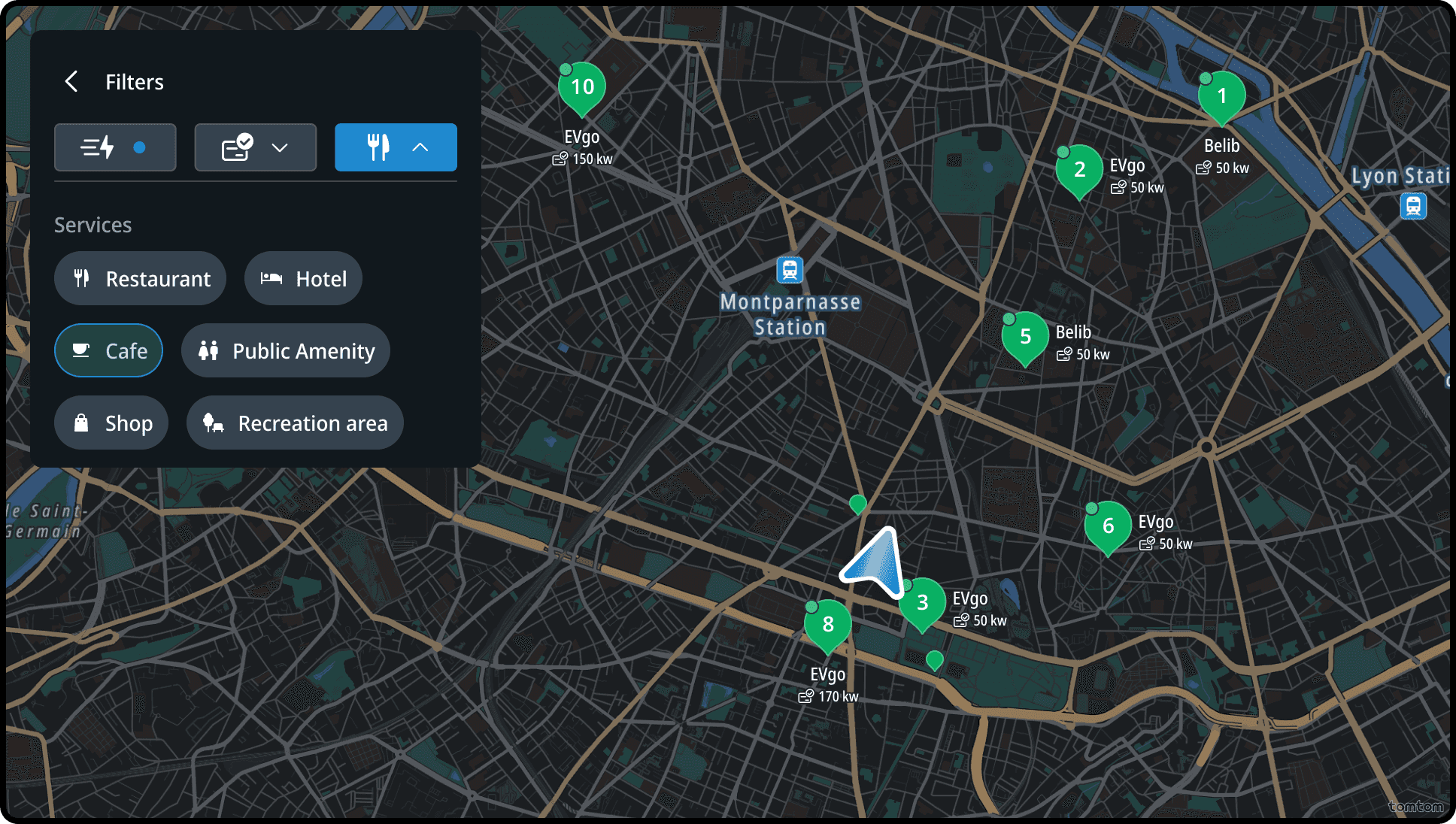
- Nearby POIs / Services: Discover charging stops in proximity to points of interest or services.
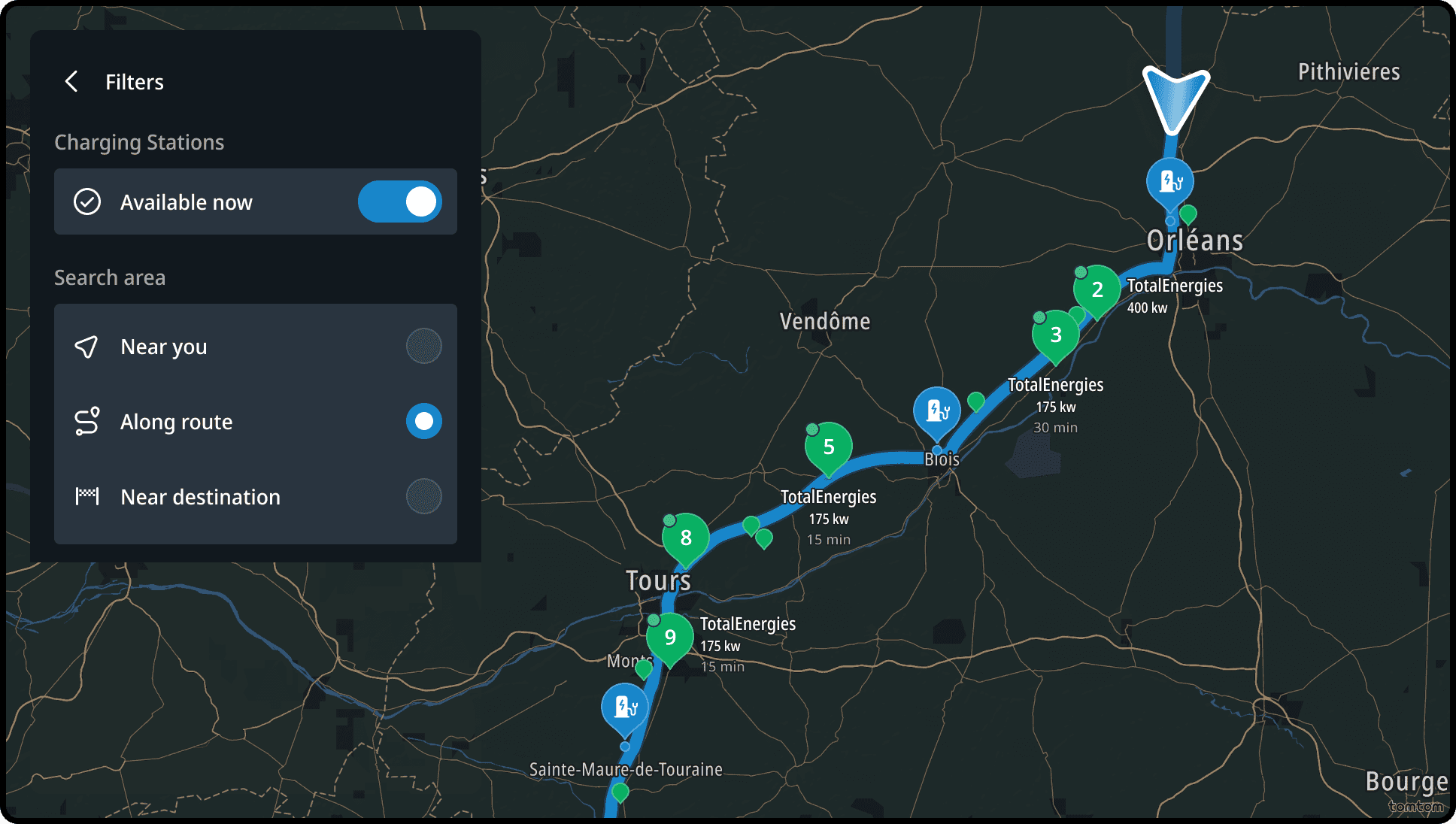
Search Area filter
Users can modify the search area to tailor the location of the results. The available search area options are:
- Near you
- Along route
- Near destination
Without an created or navigated route, the search area filter is unavailable.
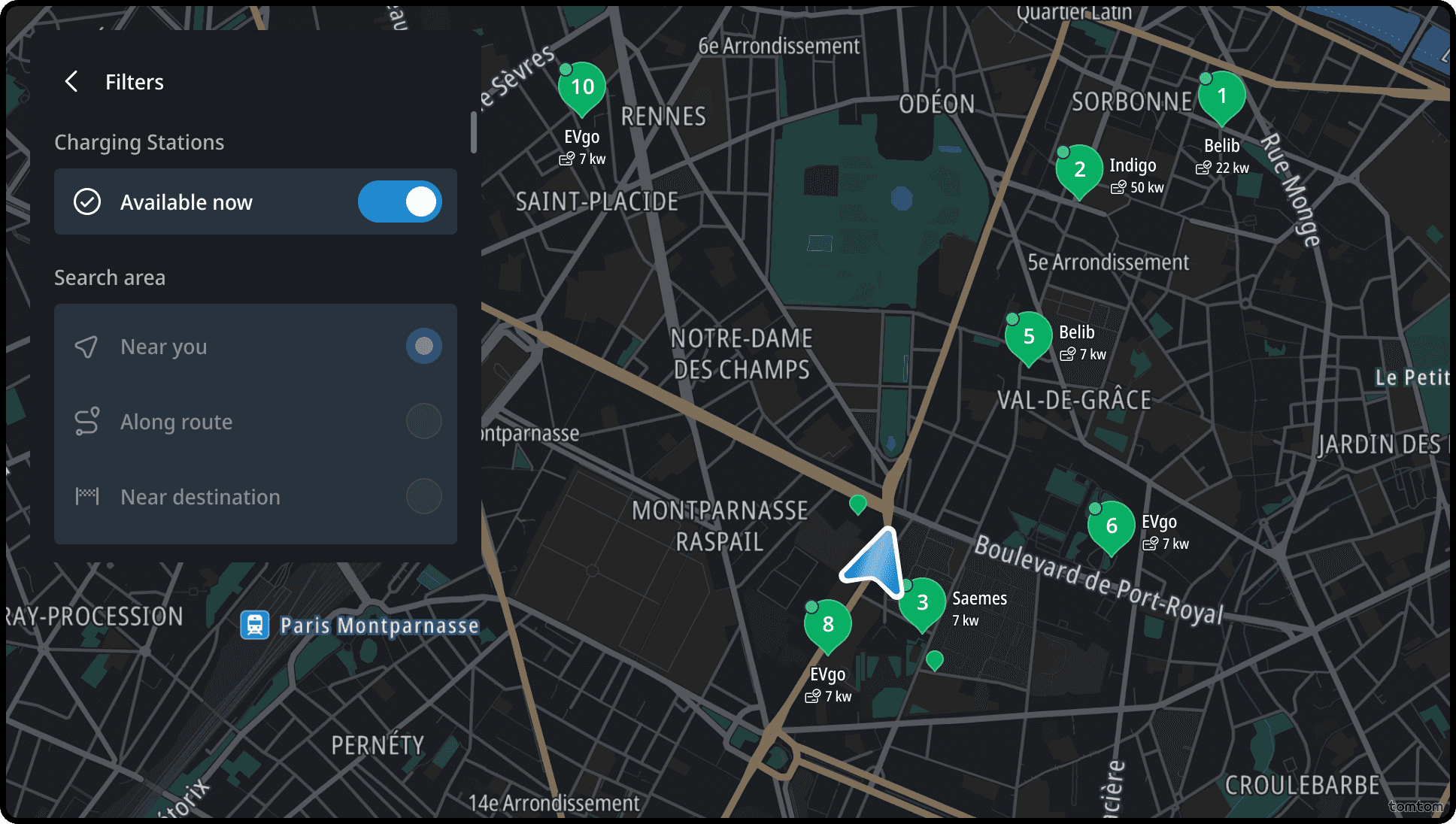
Available Now filter
This filter appears when searching for charging stations, allowing users to filter results to show only those with available compatible connectors. This filter is toggled on or off as needed, and it's off by default.
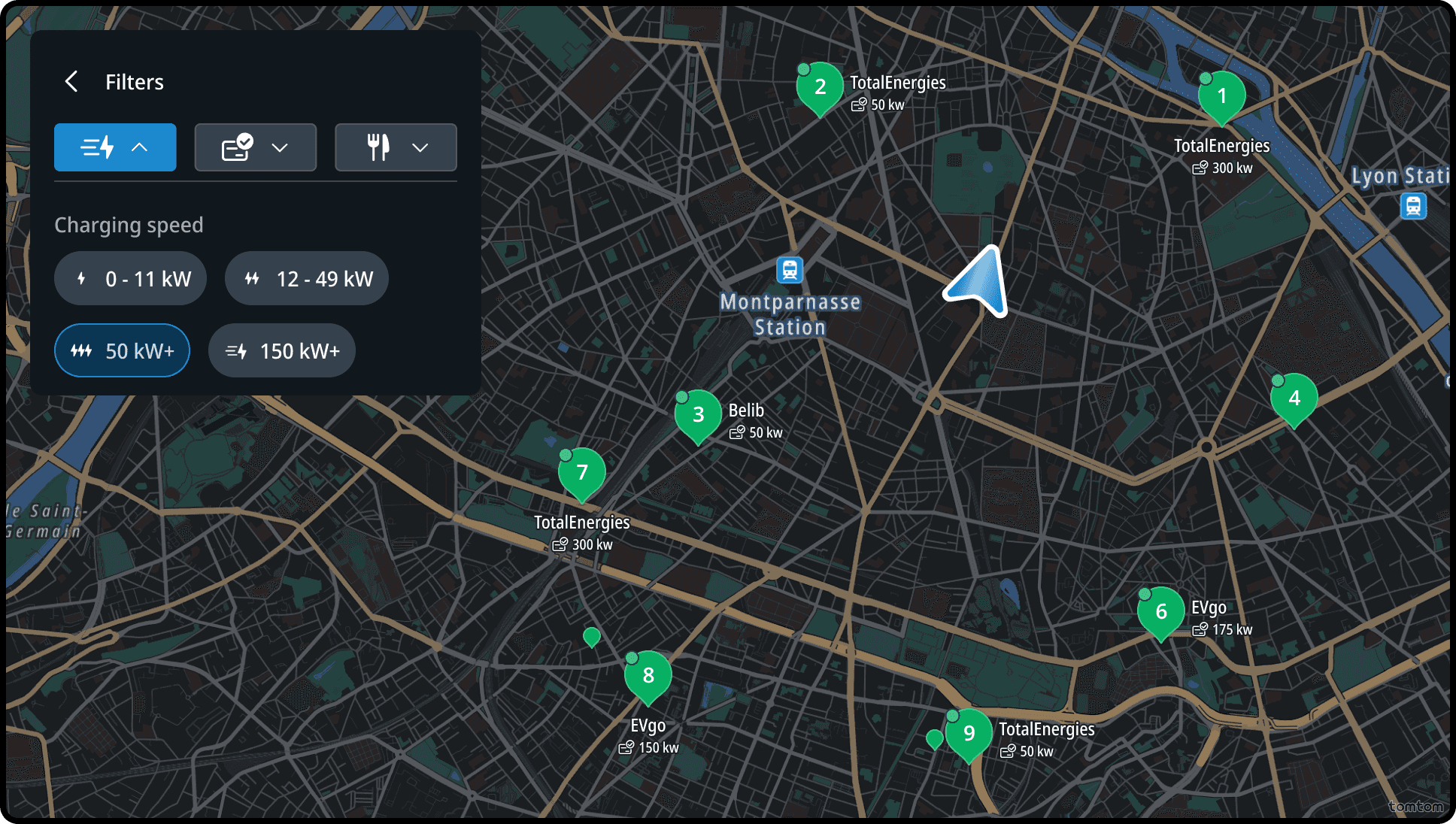
Charging Speed filter
This filter appears when searching for charging stations, as part of EV quick filters, allowing users to view stops with a specific charging speed. User can choose from the following options:
- 0-11 kW
- 12-49 kW
- 50+ kW
- 150+ kW
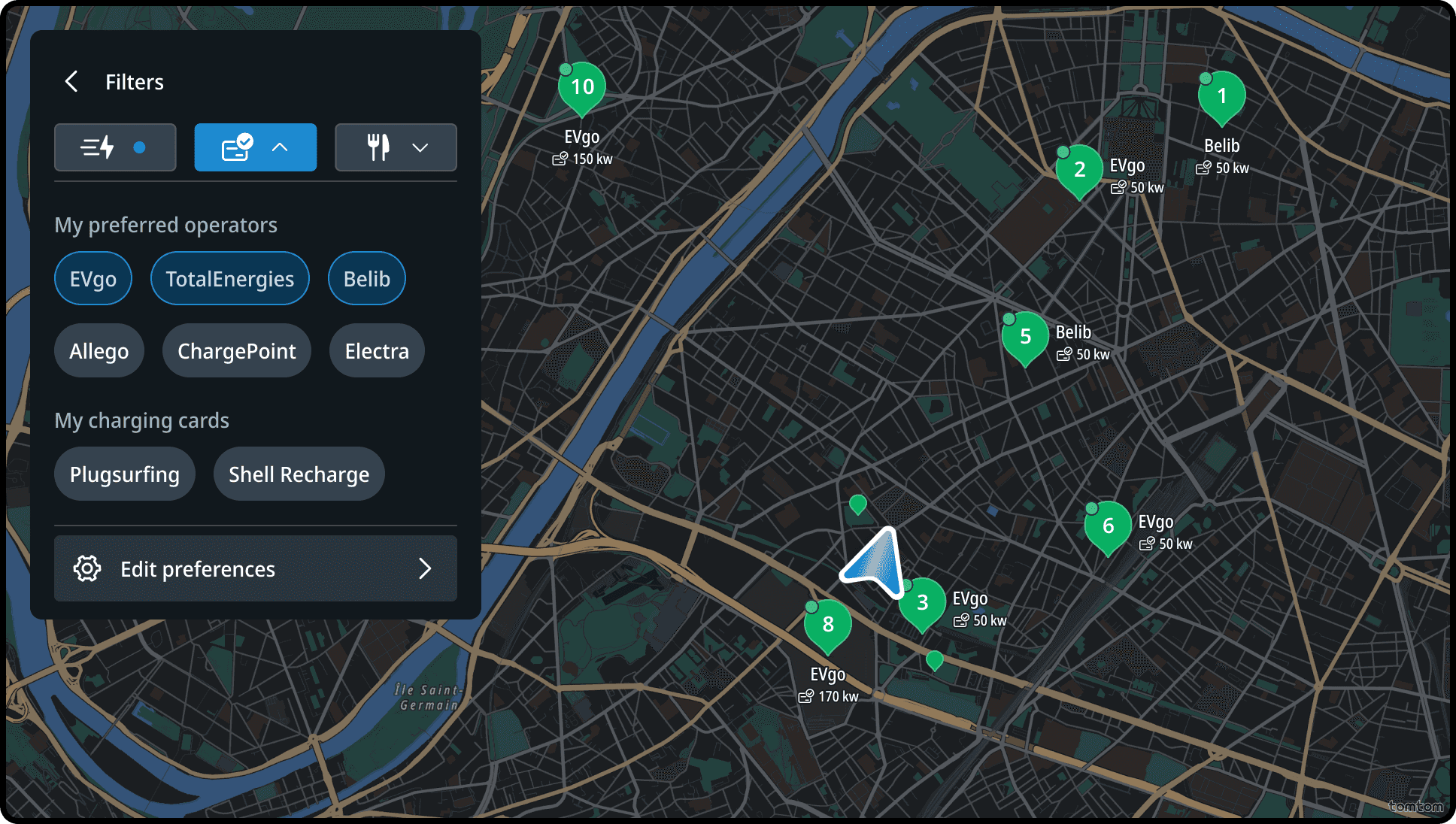
Payment Preferences filter
This filter appears when searching for charging stations, as part of EV quick filters, enabling users to apply filters to only see selected Charge Point Operators (CPOs) or specific charging providers (eMSPs). This feature offers users a customised overview of charging stations, ensuring they are informed in advance about where they can recharge their vehicles.
Charge cards are determined by the user's charging preferences which are set in Settings.
Tapping the Edit preferences will open Charging preferences page from Settings page. Preferences user set will guide the app to optimize and suggest relevant results, but search may still show chargers outside the preferences if they make sense at the given moment and scenario. On the other hand, filters are strict requirements, and only chargers matching the applied filters appear in results.
Nearby services
This filter appears when searching for charging stations, as part of EV quick filters, allowing users narrow results to charging stations with specific amenities or services nearby.
Flows
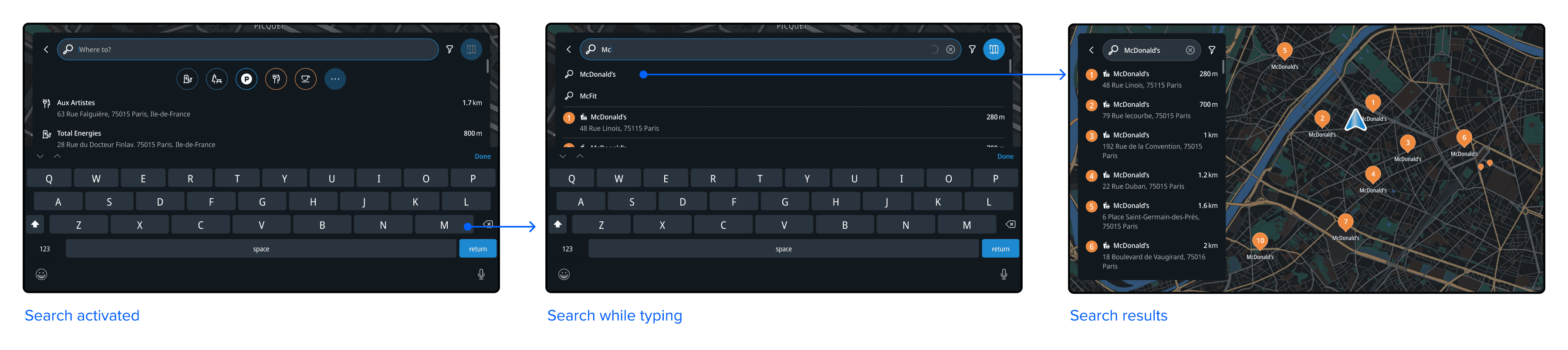
Searching for a POI using free text search
When the user activates the search, the keyboard appears, and additional POI categories are displayed alongside recent locations. As they type their query, search results appear below the input field and on the map. After submitting the search, the keyboard is hidden, allowing the user to view the results on the map.
Searching near here
When a user interacts with the map while browsing search results, a "Search here" button appears, allowing them to trigger a new search using the same query, but limited to the visible map area.
POI search from destination entry panel
When the users select a POI shortcut from the destination entry panel, a POI search is performed. The user can select a destination form the result list.
EV filters
When the user taps the filter icon, they can activate a filter, which is applied instantly. Tapping back returns them to the list view.
EV quick filters
By clicking the power quick filters button, users can adjust the filter for charging power. Similarly, clicking the payment quick filters button allows users to modify the filter for charging card and operator preferences.
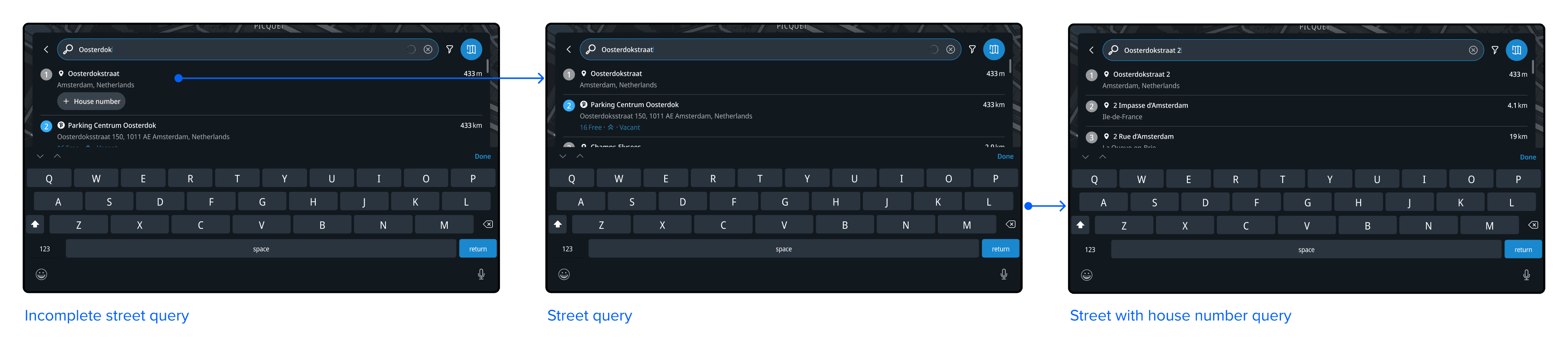
Adding house number in search
If any search results in the list are either:
- A street without a house number, or
- An address that doesn’t start with a house number
those results will contain a ‘+ House number’ button and allow the user to add the house number next to it.