User location
The Map Display Compose module allows you to show the current user location on the map. Location data is provided by the LocationProvider and is used to display the user location marker indicator on the map.
Using the location provider with the map
Location updates are generated by the LocationProvider. To receive them, you need to configure MapDisplayInfrastructure using an instance of LocationProvider. It will be used by the map to position the location marker according to the position updates.
1val mapDisplayInfrastructure = MapDisplayInfrastructure(TomTomSdk.sdkContext) {2 locationInfrastructure = MapLocationInfrastructure {3 locationProvider = myLocationProvider4 }5}
You can also use the LocationState from the MapViewState instance to retrieve the current user location or check whether the location marker is visible on the screen.
Note that if the
LocationProviderwas not set, or if it did not provide any location data, the current location will not be available.
val isLocationInVisibleArea = mapViewState.locationState.isCurrentLocationInMapBoundingBox()val currentLocation: GeoLocation? = mapViewState.locationState.getCurrentLocation()
Location marker
The user location is shown as a CurrentLocationMarker on the map. To configure the appearance of the marker, you can specify its properties using CurrentLocationMarkerProperties.
1TomTomMap(2 infrastructure = mapDisplayInfrastructure,3 state = mapViewState,4) {5 CurrentLocationMarker(6 properties = CurrentLocationMarkerProperties {7 type = Type.Chevron8 },9 )10}
The CurrentLocationMarker can be customized by changing the CurrentLocationMarkerProperties. The customizable parameters are:
- Location marker type
- Marker magnification
- Marker animation
- Custom model
Location marker type
This parameter specifies the type of the marker. The Map Display Compose module provides two default markers:
LocationMarkerType.Pointer- Location marker rendered as a point.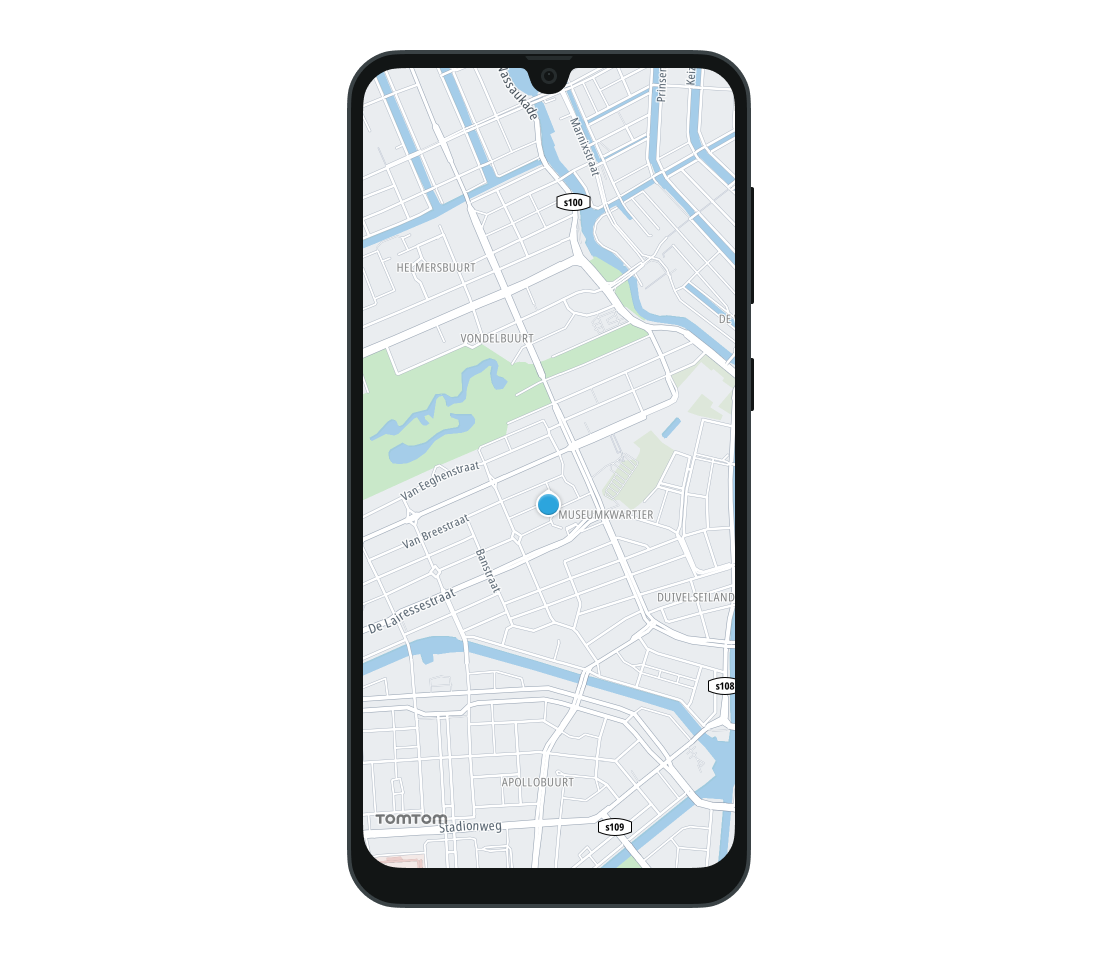
LocationMarkerType.Chevron- Location marker rendered as a chevron.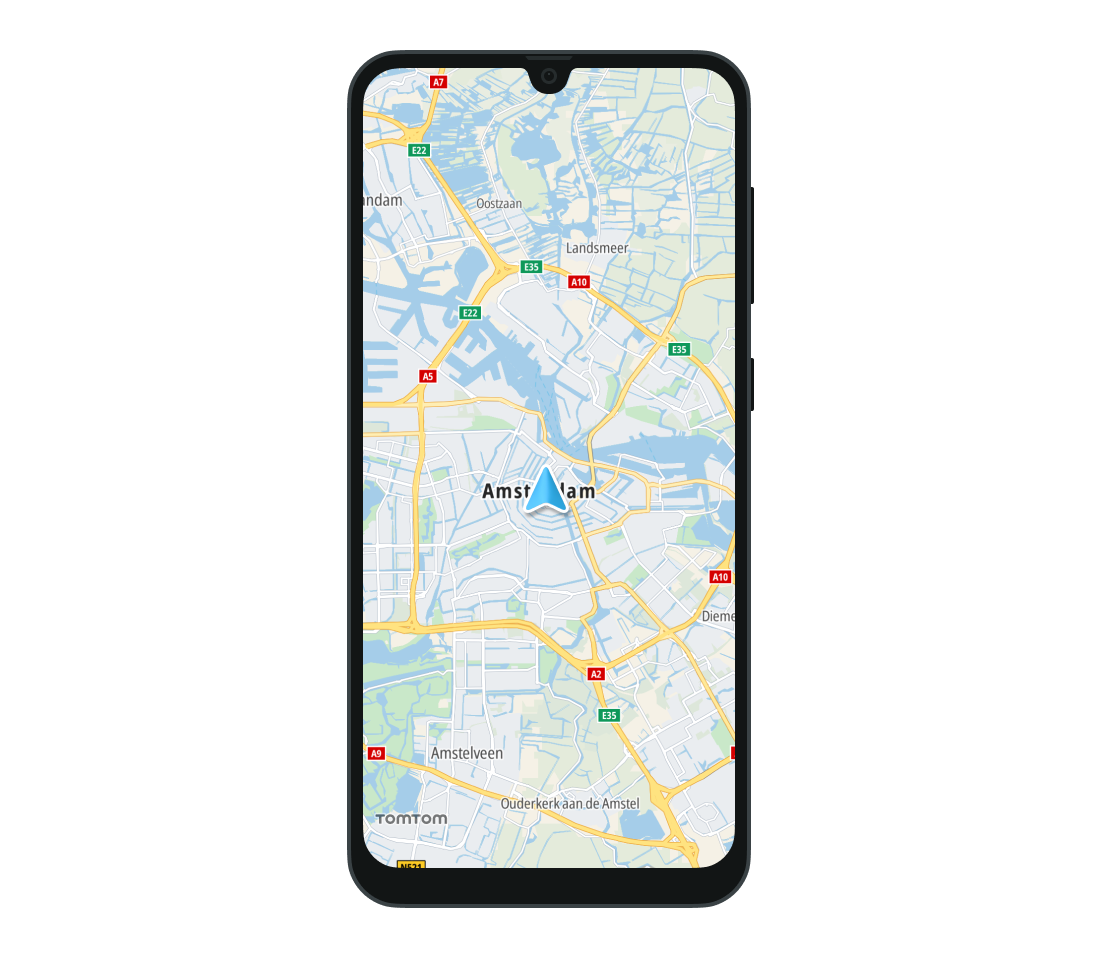
Additionally, the LocationMarkerType.Custom tells the map to use the custom marker provided to the CurrentLocationMarkerProperties class as a customModel property.
Marker magnification
The optional CurrentLocationMarkerProperties.markerMagnification property specifies the magnification level of the location marker:
- Values between 0 and 1 will reduce the marker size.
- A value of 1 keeps the marker at its original size.
- Values greater than 1 will increase the marker size.
The value must be greater than 0 or the location marker will not be updated. This means that any marker that was previously set will not be changed, and if no marker was previously set the default pointer image will be used.
Animation speed
You can customize the speed of animations between location updates by setting the optional CurrentLocationMarkerProperties.animationDuration property. It represents the duration of animations between consecutive locations. By default it is set to null which is identified as autodetect. This enables the Map Display Compose module to smoothly perform animation. Setting it to 0 turns off the animation.
Custom location markers
The Map Display Compose module supports using a custom image as the location marker. To do this, provide the path to the resource to the optional CurrentLocationMarkerProperties.customModel property. The only supported format is glTF (Graphics Language Transmission Format) 2.0. The supported model file extension is the binary-based format .glb, while the text-based format .gltf is not supported.
To add a custom location marker, specify a model path for the
.glbfile and specify a size. The project path that the custom model should be provided to is as follows: asset://file.glb.
The type of the location marker must be set to LocationMarkerType.Custom. For more information about the model core requirements and supported features, refer to CurrentLocationMarkerProperties.
Location marker UI interaction
You can define an onClick action, which will be invoked when the user taps the CurrentLocationMarker. The onClick action is provided with the coordinates of the touch point as an Offset and the geographic location of the marker as a GeoPoint.
1CurrentLocationMarker(2 onClick = { offset: Offset, position: GeoPoint ->3 // YOUR CODE GOES HERE4 },5)
Next steps
Since you have learned how to show user locations, here are recommendations for the next steps: