Traffic
The Map Display Compose module provides real-time traffic updates, allowing you to display this information on the map using the Traffic composable. This component enables you to show or hide the traffic flow and incidents.
Traffic flow
The traffic flow layer indicates congestion on the main route network. Here’s how to add the Traffic composable to a TomTomMap to display traffic flow:
1val trafficState = rememberTrafficState(2 showTrafficFlow = true,3)45TomTomMap(6 infrastructure = mapDisplayInfrastructure,7 state = mapViewState,8) {9 Traffic(state = trafficState)10}
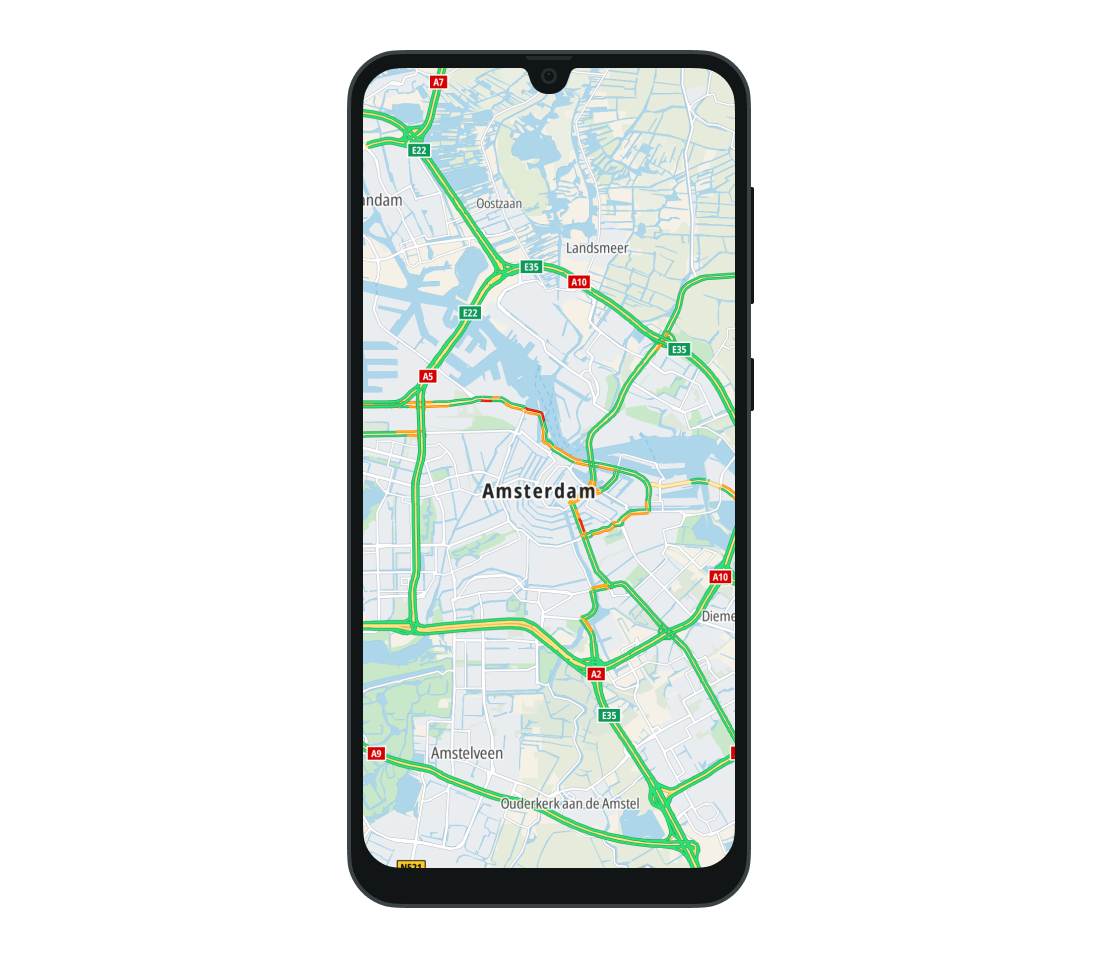
To hide the traffic flow, set showTrafficFlow to false for a TrafficState.
trafficState.showTrafficFlow = false
Traffic incidents
The traffic incidents layer provides information about disruptions on the road network. Here’s how to add the Traffic composable to a TomTomMap to display traffic incidents:
1val trafficState = rememberTrafficState(2 showTrafficIncidents = true,3)45TomTomMap(6 infrastructure = mapDisplayInfrastructure,7 state = mapViewState,8) {9 Traffic(state = trafficState)10}
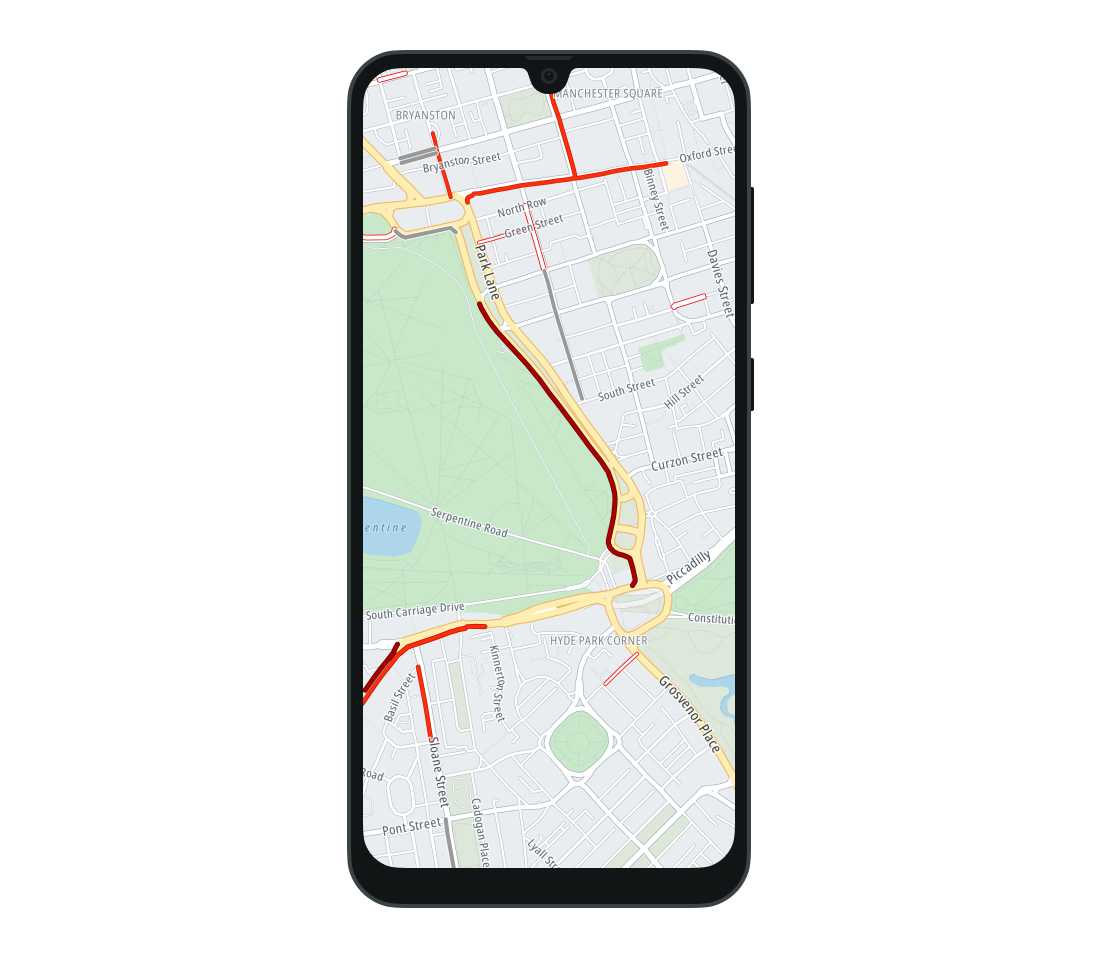
To hide traffic incidents:
trafficState.showTrafficIncidents = false
Additionally, you can observe click actions performed on traffic incidents by providing the onTrafficIncidentClick lambda to the Traffic composable. When the user taps a traffic incident, this lambda is triggered with a list of TrafficIncident objects and the GeoPoint of the clicked location. The TrafficIncident offers details about the incident, including the cause description (with an icon category), the delay duration in seconds, and the estimated incident end time.
1Traffic(2 state = trafficState,3 onTrafficIncidentClick = { trafficIncidents, geoPoint ->4 // YOUR CODE GOES HERE5 },6)
Next steps
Since you have learned how to show traffic on the map, here are recommendations for the next steps: