Analysis in progress
After running the analysis, its status will be Queued or Running. At this point, you can cancel the analysis from the My reports section, which will change its status to Cancelled.



While the analysis is calculating, you can see how many trips have been counted.
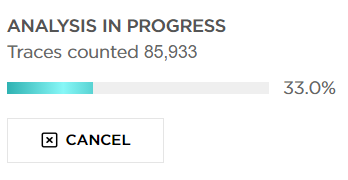
As soon as the analysis is processed, the status will change to Done.

Accepting or rejecting the report
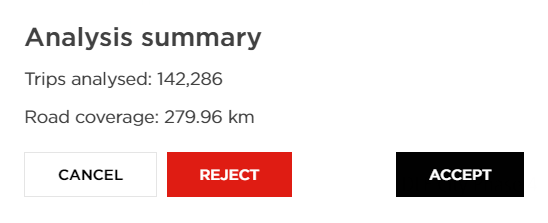
Opening a report that finished calculating but has not been accepted yet takes you to its map, with the report configuration in a panel on the right, and offers the Analysis summary window.
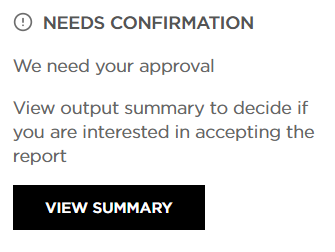
The Analysis summary window states when the report was created and lists the Pricing coverage and, for a Flow Matrix report, whether the data was map matched. Below that comes a table with one row per combination of date range and time range.
What that table contains depends on the report:
- A version 1 report adds an Analysed trips column, and the window also shows the total Trips analysed above the table.
- A version 2 Flow Matrix report shows neither. Version 2 no longer reports the raw trip count at this point, so the decision to accept is made on the report configuration rather than on the number of trips.
- A version 2 Selected Link report replaces the trip count with a Max margin of error column, the largest margin of error observed in the results, together with an explanation of how to read confidence intervals.
Use Accept to confirm the report, or Reject report if you do not want to be charged for the results.
As soon as the analysis is accepted, the status will change to Accepted.

From then on, opening a version 2 report goes straight to its results instead of to this intermediate screen.
If you reject the analysis, it will change to the following status:

In rare cases, the analysis may fail while being processed. The outcome is the Failed status, which indicates that it was not calculated properly. You will not be charged for such an analysis; therefore, we advise running it again.
Should the issue occur more than once, do not hesitate to contact us at MoveSupport@tomtom.com, and we will investigate it further.
