Selecting date and time ranges
Dates and times are two separate sections of the left panel on the creation page. Each section header shows how many ranges you have already defined and how many your account allows, for example Dates (2/4) and Times (3/24). The default allowance is four date ranges and 24 time ranges per report, but the effective limits come from your account.
Date ranges
Add a range with Create new date, or reuse a range you saved earlier through the Add from template button next to it. Both controls are disabled once the report reaches its date range limit. Delete all removes every date range at once and asks for confirmation first.
One day is the minimum and one year is the maximum length of a single range. The entire date range of your selection is used in the analysis calculations.
You can calculate your analyses on the data from the last two years, which is a moving time window.
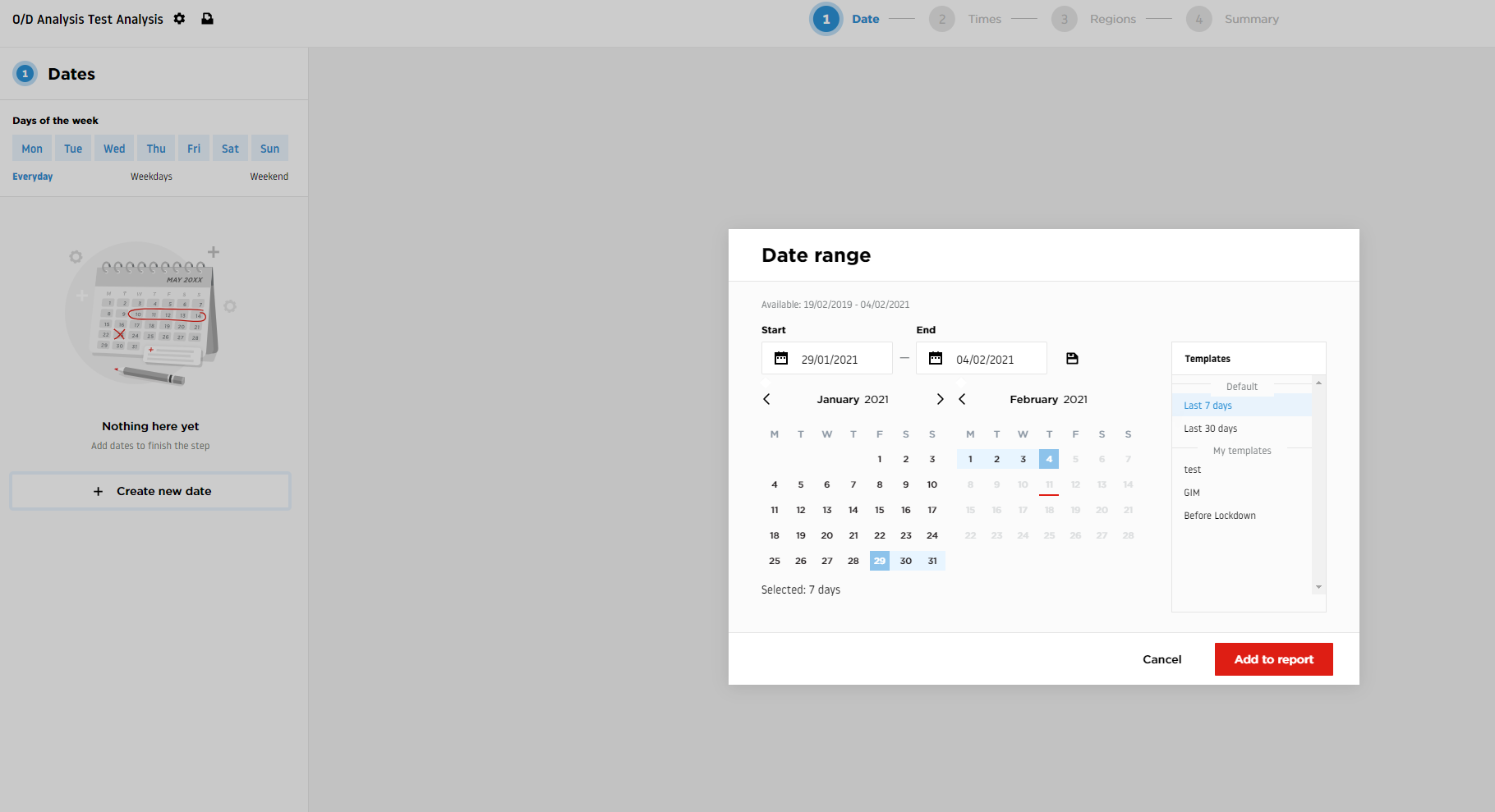
Note: Synchronizing and saving all the new data we use in our tool takes up to one day. Therefore, it is not possible to use the last day (today) in the analysis date range to make sure the results contain a complete source of data.
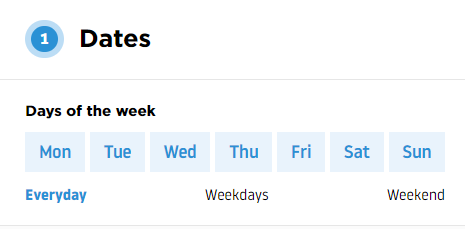
Each date range carries its own selection of days of the week that are considered in the analysis calculations. At least one day of the week has to stay selected.
A trip is assigned to the date range in which it enters its first region, and each range gets its own set of statistics. In a Selected Link report the trip is assigned to the range in which the link entry, or the region entry or exit, occurs.
Time ranges
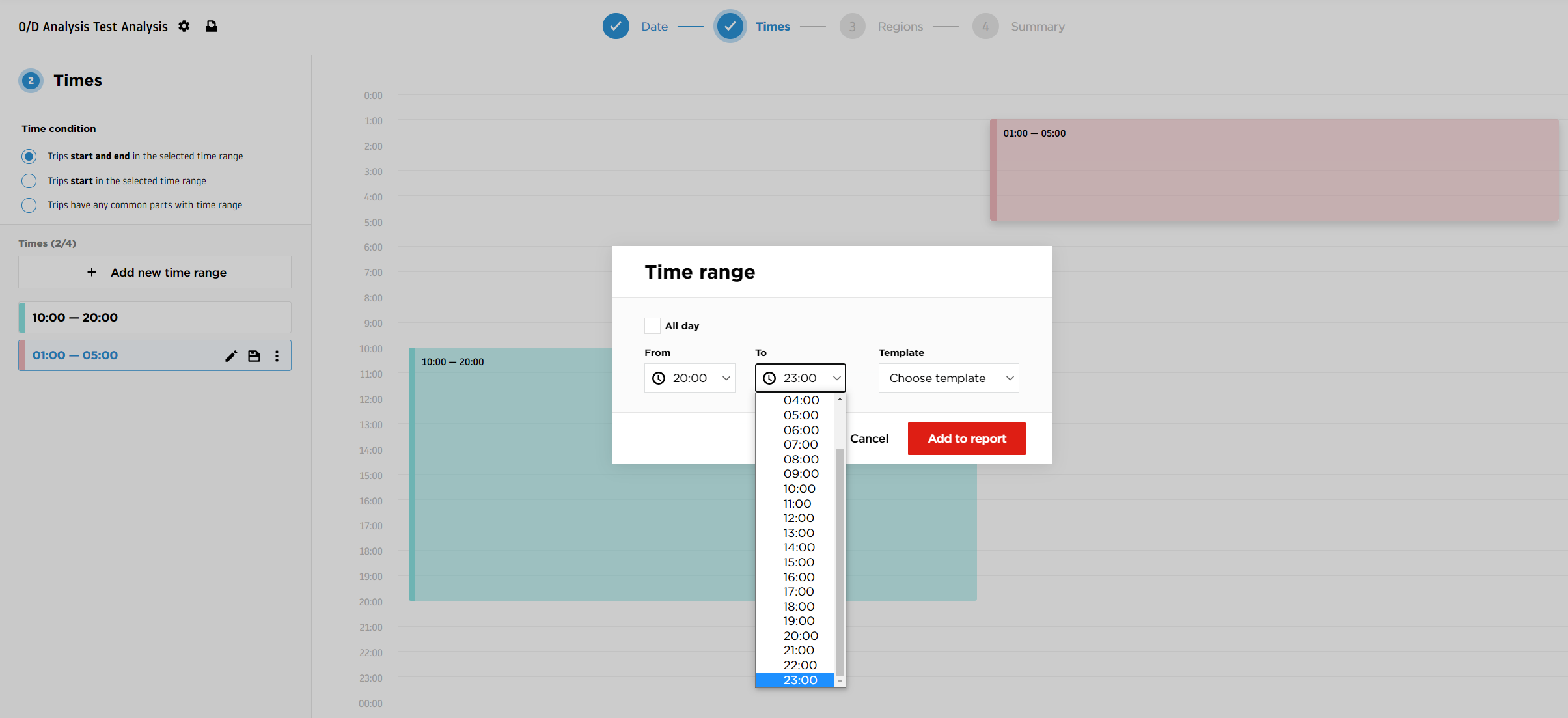
A time range is a window within the day. The minimum is one hour and the maximum is 24 hours. As with dates, you can add a range manually with Add new time range, reuse a saved one through the template button next to it, or clear the section with Delete all.
Version 2 adds a generator that fills the whole day with equally sized ranges in one click. Pick a bucket size of 1h, 3h, 4h, 6h or 12h and click Generate. Hovering over a bucket size previews the ranges it would produce. If the generated series would exceed your time range limit, the extra ranges are dropped and a message tells you how many were removed.
Reports with more than one time range additionally offer time series chart analysis in the results.
Universal time condition
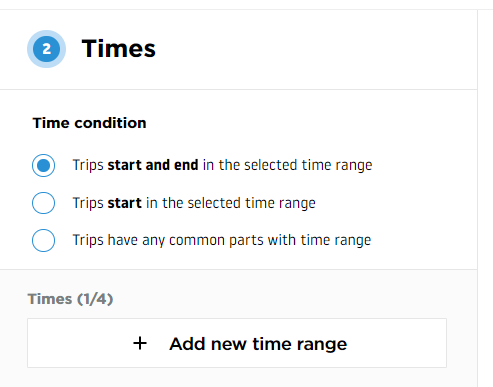
Version 1 also asked you to choose a time condition, which decided whether trips had to start and end inside the time range, only start inside it, or merely overlap it.
Version 2 removes that choice. All version 2 reports use a single universal time condition, so the selector is no longer part of report creation.
Time zone
The time zone is a section of its own, placed directly under Times.
It shows the zone the ranges are interpreted in and lets you either pick another zone from a searchable list or click Set based on geometry to take the zone implied by the regions you have drawn.
The default value is Etc/UTC, so set it explicitly if the analyzed area uses a different zone.