API and SDK key management
Introduction
It’s important to keep your API key confidential. Never share your key publicly. If you need to identify a key with TomTom support, use a key ID instead.
What is an API key?
API stands for Application Programming Interface. When you use our location services (our APIs), we need a way to identify that it's your application that's making the request to use the service (API).
Definitions
| Term | Description |
|---|---|
| Key | Alphanumeric unique identifier used for authentication and authorization. |
| Products | API and SDK products assigned to a Key. |
| Billing type | How the key is billed. |
| Paying | For contracted customers: billing based on a licensing agreement. |
| Evaluation | For contracted customers: billing based on an evaluation agreement. |
| Free | For contracted customers: personal key, not billed. |
| Freemium | For Freemium / Pay as You Grow customers: billing type. |
| Pay as You Grow | For Freemium / Pay as You Grow customers: billing type. |
| ID | Unique identifier that you can use in support queries related to your key. |
| Key rotation | Dashboard feature that allows you to regenerate your API keys in case ofs a security incident. Learn more about key rotation here. |
| QPS management | Dashboard feature that enables customers to request a change of their queries per second (QPS) limit. This feature is only available for our contracted customers. Learn more about QPS management here. |
Start using your API key
Click on your key and it will be copied to your clipboard. Keys are truncated in the interface for security reasons.
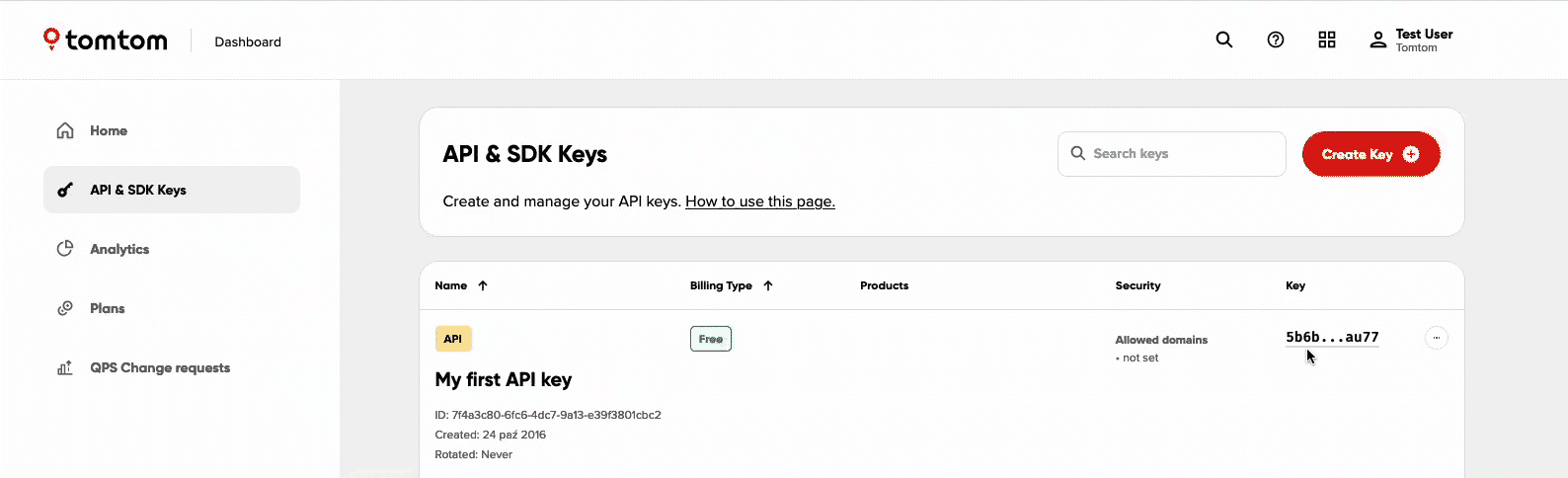
You can use the following API request example to test your key. Remember to replace Your_API_Key with your own key.
Then paste the whole query in your browser address bar and hit enter.
https://api.tomtom.com/map/1/tile/basic/main/0/0/0.png?view=Unified&key=YOUR_API_KEY
You should now see a map tile containing the whole world.

Find important information about your key
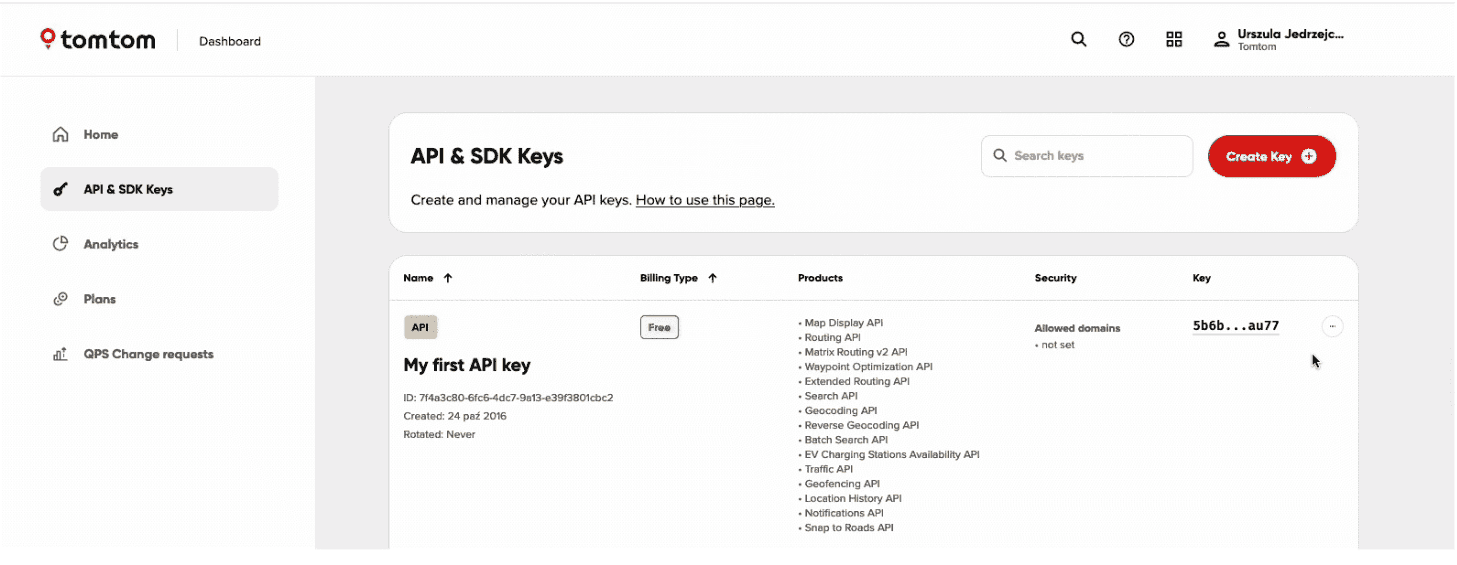
The API & SDK keys tab in the Dashboard can provide you with the following information:
- What products your key is valid for.
- When the key was created.
- When (if ever) key rotation was performed on this key.
- What are the allowed domains for your key.
Perform operations on your key
For each of your keys the following operations are available:
- Editing the key
- Editing the key name, assigned products and domain whitelist.
- Key rotation. Learn more about key rotation here.
- Adjusting QPS limits (available only for contracted customers). Learn more about QPS management here.
- Deleting the key. All the above operations can be accessed from the “…” menu next to the API key.
Monitor usage of your keys
Detailed analytics information is provided for each of your keys. To check your usage, navigate to the Analytics tab. To learn more about statistics provided by TomTom, refer to the Analytics.
What to do if your key is disabled
In very rare cases your key might show up as disabled on the dashboard. In case this happens, and you believe this to be a mistake, please contact support.
