Managing access in MyTomTom
Introduction
User and access management is a key feature of MyTomTom that enables customers to collaborate securely.
We have recently improved the access management tool to provide greater granularity and transparency regarding what users are allowed to do.
In MyTomTom, you can access the Access Management page from the cogwheel menu located next to the project dropdown.
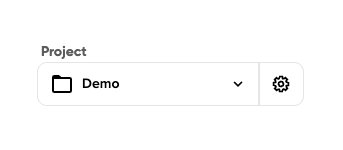
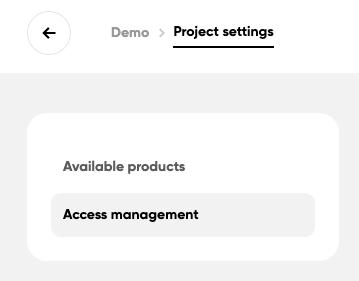
To access this page, you will need to have the right permission.
From the Access Management page, you can take actions related to the current project you are in:
- Invite new users
- Review pending access requests
- View and edit current user access
- Remove users
Granting or editing access
Once you click on a user, you will see the list of available permissions (based on your project and the included tools):
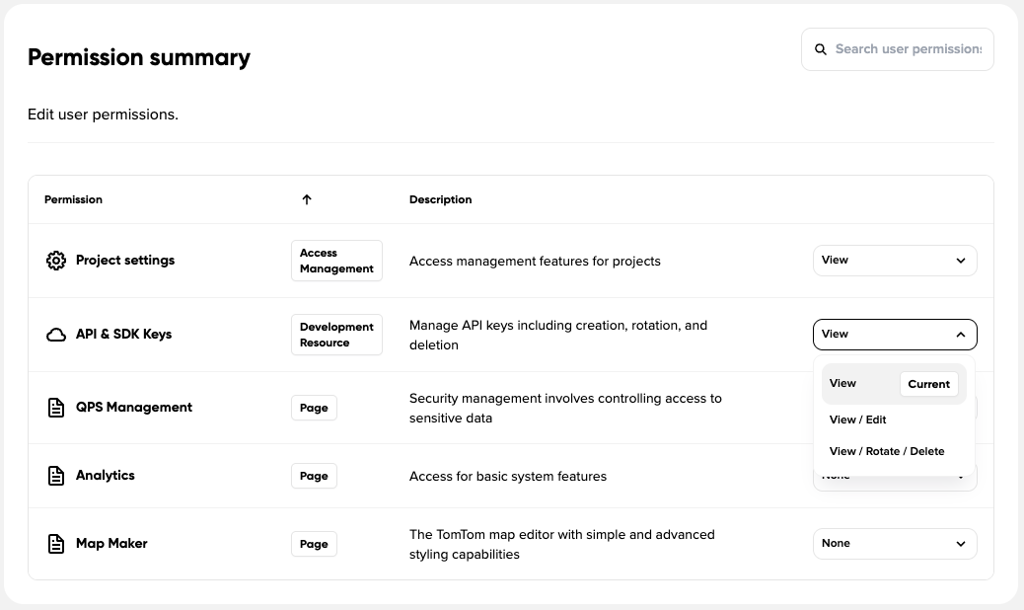
For each permission, you can view the current access level and the available options.
For example, for API & SDK key management, you can choose between the following access levels:
- None. The user cannot see or manage API & SDK keys.
- View. Allows a user to see the available keys, including their name, ID, configuration details and the actual key secret.
- View / edit. Allows a user to create new keys, in addition to the permissions included in View.
- View / rotate / delete. Allows all previous actions, as well as performing destructive operations such as rotating or deleting existing keys.
This page allows customers to control user access within a project with a high level of granularity.