Analytics
Introduction
The Analytics feature provides customers with full visibility of the main metrics related to API usage such as total requests, errors, and QPS breaches. This documentation will explain how to use the main metrics, filters, and tutorials of this Analytics feature.
What are the main metrics
Total requests
A summary of all the API requests you made.
These could be different to what you see on your invoice.
You will be invoiced based on your contractual agreement with TomTom.
QPS breaches
QPS breaches occur when the number of queries per second exceeds the limit set for an API key and the products (APIs) it is using.
QPS limits can be changed.
4XX errors
4xx errors (such as 404 Not Found) indicate client-side errors, meaning that the client made a request that the server could not fulfill.
This could be due to:
- An incorrect URL
- A missing resource
- Insufficient permissions
5XX errors
5xx errors (such as 500 Internal Server Error) indicate server-side errors, meaning that the server encountered an issue while trying to fulfill the client's request.
This could be due to:
- A server configuration error
- A database connection issue
- A problem with the server's code
Useful terms
- QPS. QPS stands for queries per second. It is a measure of the number of queries that can be processed by an API in one second.
- QPS limits. The QPS limit refers to the maximum number of queries per second that can be made.

This can be changed on the API key page.
What the filters do
There are several ways to zoom in the data using filters:
- Dates. Easily select the range of dates you need to focus on.
- API Key. Shows you all the data for products belonging to a specific API key.
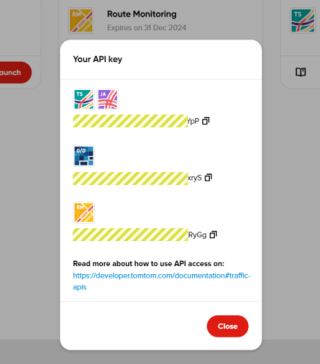
-
Products. Shows you all the data for products you select.
Note: You must select the API key first, or all API keys will be shown.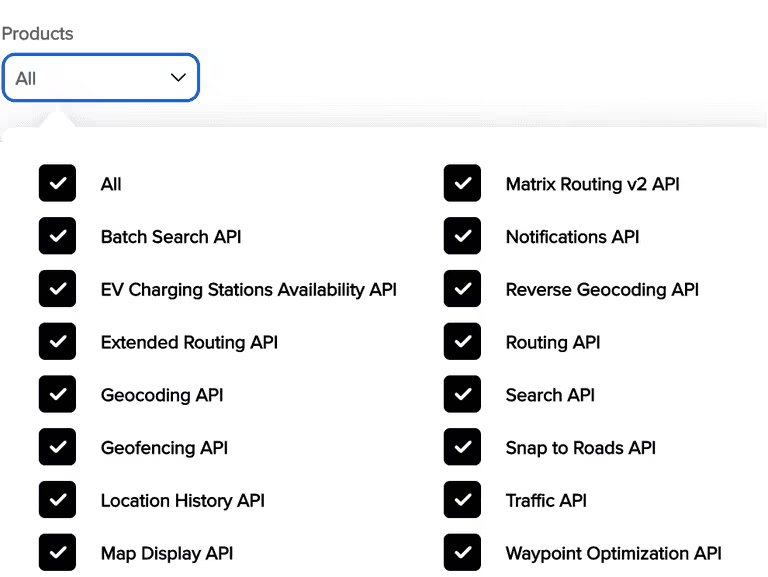
Show this pulldown menu changes the detail level for the graphs.
- Click the dropdown menu.
- Select either "Hour" or "Day".
How to use the page
- Investigate overall usage. Set filter > Date > Zoom level > Key > Product
- See which products have QPS breaches. Set filter > Date > Zoom level > Key > Product > QPS breaches tab
- See which products have errors and when they are happening. Set filter > Date > Zoom level > Key > Product > Errors tab
- Download the data. To download a file with your data, click "Export". The default file format is CSV.
Columns in CSV file
The columns of the CSV file are
| Column name |
|---|
| Date/Time |
| Product name |
| Service name |
| Application |
| Total requests |
| Elements (*) |
| QPS breaches |
| Total errors |
| Additional columns with the Error codes |
(*) For the Matrix Routing and SnapToRoads APIs, this column ("elements") represents the basis for calculating the consumption and plays a role in the final pricing calculation.