UI overview
UI overview
The GEM User Interface provides a web-based dashboard for managing your matching jobs. This is the recommended approach for users who prefer a guided, visual workflow.
Accessing the UI
- Navigate to my.tomtom.com
- Log in using your Microsoft Entra ID credentials
- Select your project from the dropdown in the left navigation
- Click Global Entity Matcher in the sidebar
Note: If the "Global Entity Matcher" option doesn't appear, your organization or project may not have GEM access enabled. Contact your administrator to request access.
Dashboard overview
The GEM dashboard provides a central hub for all matching operations:
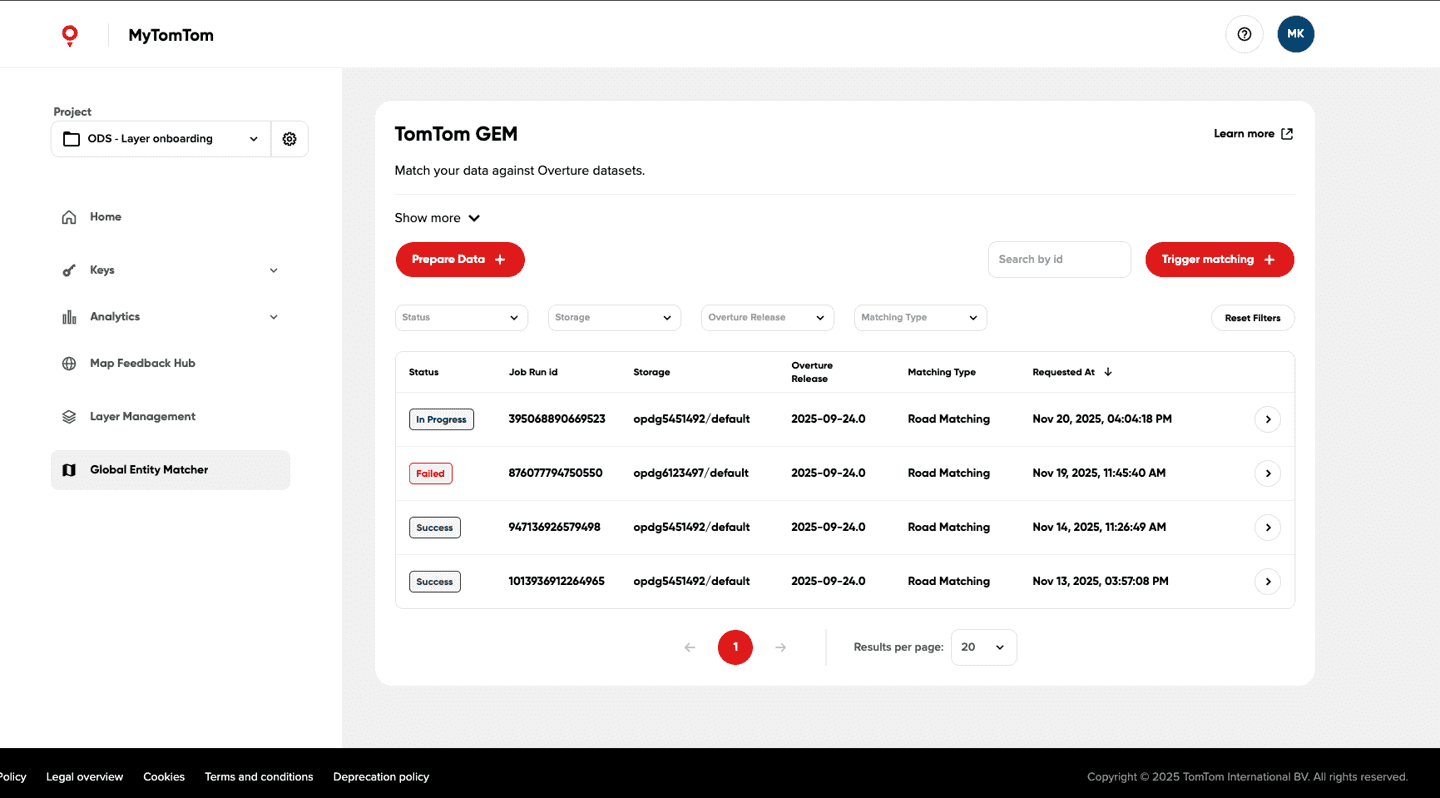
Main features
| Feature | Description |
|---|---|
| Job list | View all previous matching jobs with status, timestamps, and details |
| Search | Find specific jobs by ID |
| Filters | Filter by status, storage, Overture release, or matching type |
| Prepare Data | Upload new data to storage |
| Trigger matching | Start a new matching job |
UI capabilities
Data management
- Upload data: Guided workflow to upload Parquet files via Azure CLI
- Storage selection: Choose from available storage locations
- Credential management: Secure access to Azure storage credentials
- Download results: Retrieve matching results via Azure CLI
Job management
- Run jobs: Submit matching requests with customizable parameters
- Monitor progress: Real-time status updates for running jobs
- View details: Access detailed information for each job run
Results visualization
- Matching statistics: View roads matched, unmatched, and confidence scores
- Job history: Track all jobs with timestamps and parameters
Prerequisites
Before using GEM UI, ensure you have the following:
1. Account access
- TomTom account: Active account at my.tomtom.com
- Project assignment: Assigned to a project with GEM access enabled
- Microsoft Entra ID: Authentication credentials configured
2. Technical tools
- Azure CLI: Required for data upload/download operations
- Install from Microsoft Azure CLI
- Supports files of any size with no memory limitations
- Terminal access: Command-line interface on your machine
- Stable internet: For uploading/downloading datasets
Next steps
Ready to use the UI? Follow the complete workflow guide:
- UI Workflow Guide - Step-by-step instructions for the complete workflow
Or explore other documentation:
- API Overview - Learn about programmatic access
- Technical Details - System architecture details