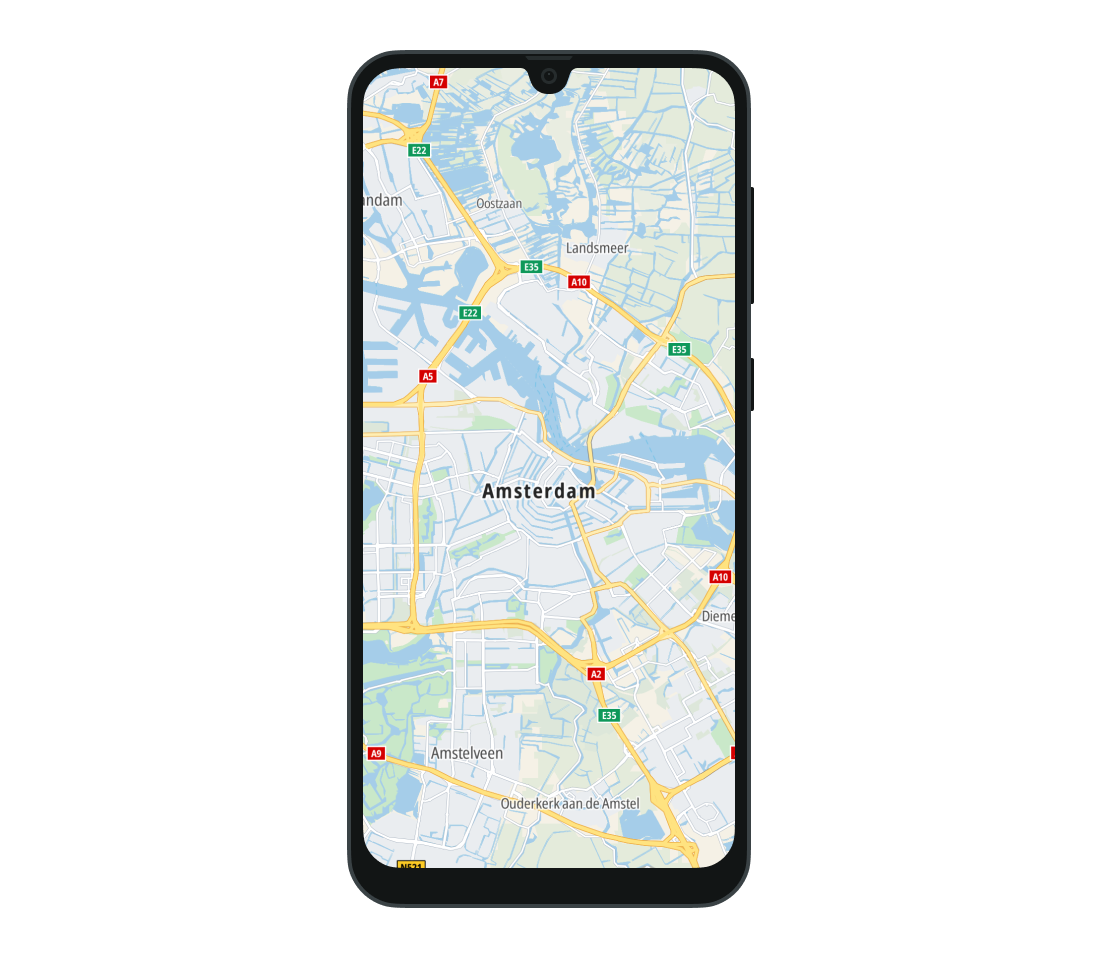
Displaying your first map
The Map Display module provides a set of tools that enable embedding the TomTom map in Android applications. It makes it easy to add visual components to the map, such as routes and markers. You can also control map interactions and the camera position. In this guide you will see how to set up the project to show a map on your emulator or device.
The technologies employed include Jetpack Compose alongside the components of the Maps and Navigation SDK, specifically the TomTomMap composable, which enables to display a dynamic map in your application with minimal effort.
Project setup
Remember to configure your project to support Jetpack Compose by following the official Jetpack Compose setup guide.
Configure the project as described in the Project setup guide.
Initialize the Maps and Navigation SDK
The first step is to initialize the SDK. Refer to the Maps and Navigation SDK Initialization Guide for detailed information on the process of initializing the Maps and Navigation SDK and configuration options.
Showing the map
With the Maps and Navigation SDK successfully initialized, it is time to display a map in your app. Replace the default composables with new composables that render the map and enable basic map functionality.
Step 1: Add the Required Dependencies
First, add the necessary dependencies to your project. Update your app’s build.gradle.kts file:
val version = "2.4.2"implementation("com.tomtom.sdk.maps:map-display-compose-standard:$version")
Step 2: Create a Map Composable
Once the dependencies are configured, you can use the TomTomMap to display the map in your application. The TomTomMap object provides access to key map functionalities, such as adding markers, adjusting the camera position, and customizing map styles.
Here is an example of a composable function that sets up and displays the map:
1private val TOMTOM_AMSTERDAM_OFFICE = GeoPoint(latitude = 52.3772449, longitude = 4.9097159)2private const val INITIAL_CAMERA_ZOOM = 12.034@Composable5fun MapScreen() {6 val initialCameraOptions: InitialCameraOptions = InitialCameraOptions.LocationBased(7 position = TOMTOM_AMSTERDAM_OFFICE,8 zoom = INITIAL_CAMERA_ZOOM,9 )10 val mapDisplayInfrastructure = MapDisplayInfrastructure(11 sdkContext = TomTomSdk.sdkContext,12 ) {13 locationInfrastructure = MapLocationInfrastructure {14 locationProvider = TomTomSdk.locationProvider15 }16 }17 val mapViewState = rememberMapViewState(initialCameraOptions = initialCameraOptions)1819 TomTomMap(20 state = mapViewState,21 infrastructure = mapDisplayInfrastructure,22 )23}
The map can be configured using different attributes. Read more about this in the Map Configuration guide.
Step 3: Display the Map in MainActivity
Once you have the composable function ready, call it from your Activity onCreate() method to render the map:
1setContent {2 MapScreen()3}
Step 4: Build and Run Your Application
Build and run your application. Upon execution, the map will be displayed, centered on the TomTom Amsterdam Office. You can use gestures like panning and pinch-to-zoom to explore different areas of the map.