Interactive Maps
Interactive Maps
Interactive maps are available with the TomTom Orbis Maps backend. See Quick Setup for how to enable it.
Instead of only getting text-based answers, your AI assistant can now show location results on an interactive map — right inside your conversation. Search results appear as markers you can click, routes are drawn visually on the map, and traffic data is overlaid in real time.
Why Interactive Maps?
Traditional MCP tool responses return text — a list of coordinates, addresses, or route details. Interactive maps enhance this by giving you a visual layer on top of every response:
- See results at a glance — Quickly understand spatial relationships instead of parsing coordinates
- Explore interactively — Pan, zoom, and click markers to see details like place names, addresses, and categories
- Share context visually — Maps make it easy to communicate location insights to stakeholders
There's nothing extra to install or configure — the maps are built using MCP Apps and render automatically in supported AI clients.
How It Works
- You ask your AI assistant a location-related question (e.g., "Find coffee shops near the Eiffel Tower").
- The assistant calls the appropriate TomTom tool (e.g.,
tomtom-nearby). - The tool returns both a text response with the results and an interactive map showing the locations visually.
The map appears inline in your conversation. You can pan, zoom, and click on markers to see details — all without leaving your AI client.
Supported Tools
All tools in the TomTom Orbis Maps backend include interactive map visualizations:
Search & Geocoding
| Tool | What the Map Shows |
|---|---|
| tomtom-geocode | Pinpoints the geocoded address on the map |
| tomtom-reverse-geocode | Shows the resolved address location for given coordinates |
| tomtom-fuzzy-search | Displays all matching results as markers with click-to-view details |
| tomtom-poi-search | Shows points of interest as markers with name and category info |
| tomtom-nearby | Plots nearby places within the search radius |
Routing & Navigation
| Tool | What the Map Shows |
|---|---|
| tomtom-routing | Draws the calculated route with origin and destination markers |
| tomtom-waypoint-routing | Displays multi-stop routes with all waypoints marked |
| tomtom-reachable-range | Highlights the reachable area as a shaded polygon |
Traffic & Maps
| Tool | What the Map Shows |
|---|---|
| tomtom-traffic | Shows traffic incidents with live traffic flow overlay |
| tomtom-dynamic-map | Custom map with markers, routes, polygons, and traffic layers |
For the full list of tool parameters and API documentation links, see TomTom Orbis Maps Backend Tools.
Map Features
- Pan and zoom — Explore the map freely by dragging and scrolling
- Clickable markers — Click any marker to see place names, addresses, and other details in a popup
- Automatic bounds — The map automatically adjusts its view to fit all results
- Traffic flow — Real-time traffic colors overlaid on roads (for traffic tools)
- Route lines — Clearly drawn route paths with start and end markers
- Theme toggle — Switch between light and dark map styles
Example
User prompt:
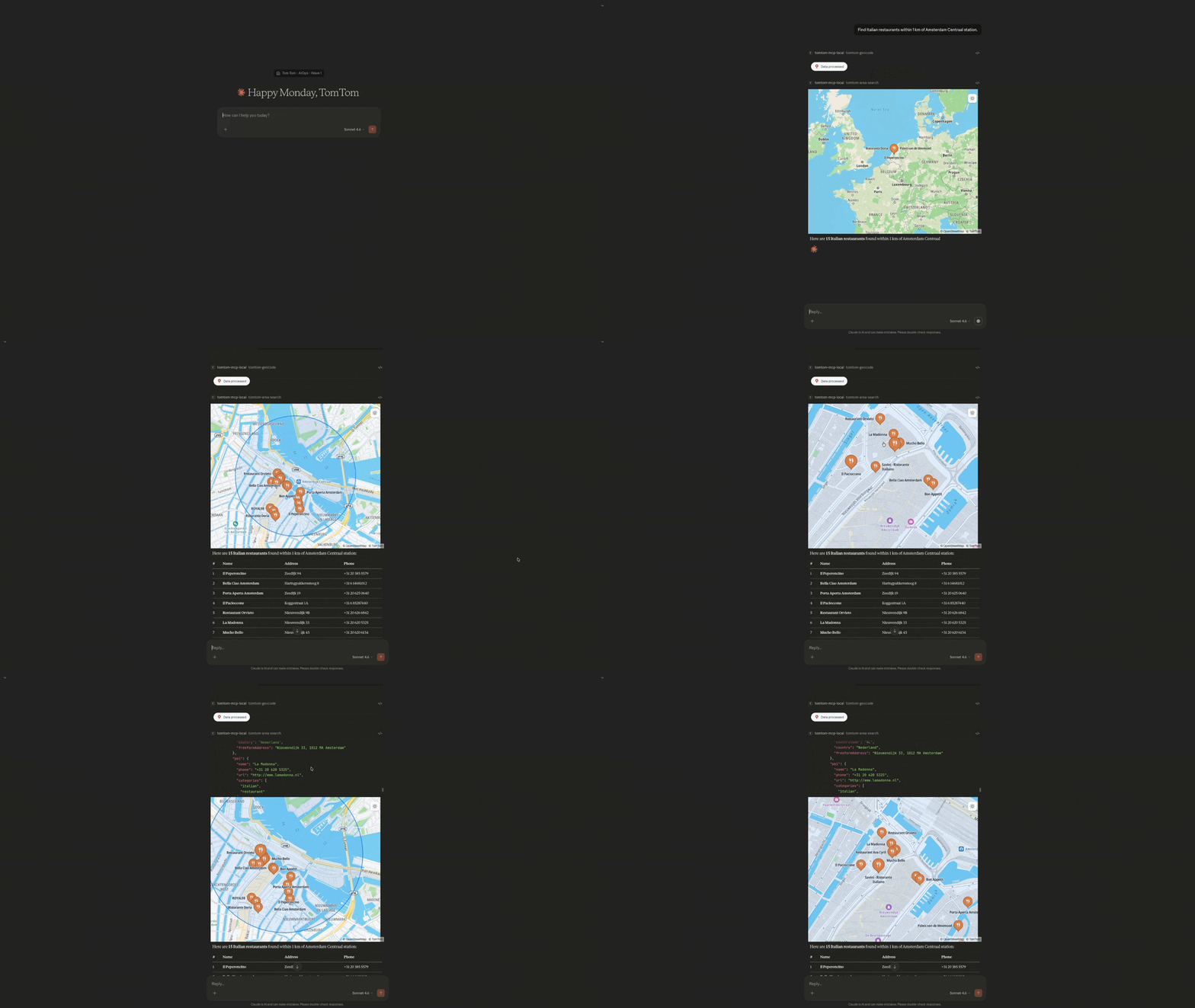
Find Italian restaurants within 1 km of Amsterdam Centraal station.
What you get:
- A text response listing the restaurants with names, addresses, and distances
- An interactive map centered on Amsterdam Centraal, with markers for each restaurant — click any marker to see its details
Availability and Client Support
Interactive maps require two things:
| Requirement | Details |
|---|---|
| TomTom Orbis Maps backend | Set via the tomtom-maps-backend: tomtom-orbis-maps header (remote) or MAPS=tomtom-orbis-maps environment variable (local) |
| MCP client with Apps support | Claude Desktop supports MCP Apps. Other clients may add support over time. |
What if my client doesn't support MCP Apps?
The interactive maps are an enhancement, not a replacement. Every tool always returns a full text response with all the data (coordinates, addresses, distances, route details, etc.) regardless of your client or backend. If your client doesn't support MCP Apps, you'll still get the complete text results — you just won't see the map visualization.
Configuration
Remote MCP Server
To enable interactive maps with the remote server, include the Orbis Maps backend header:
1{2 "mcpServers": {3 "tomtom-mcp": {4 "type": "http",5 "url": "https://mcp.tomtom.com/maps",6 "headers": {7 "tomtom-api-key": "your_api_key_here",8 "tomtom-maps-backend": "tomtom-orbis-maps"9 }10 }11 }12}
Replace "your_api_key_here" with your actual TomTom API key from developer.tomtom.com.
Local Setup
Set the MAPS environment variable when starting the server:
MAPS=tomtom-orbis-maps npx @tomtom-org/tomtom-mcp
For more configuration options, see Quick Setup.
Next Steps
- Explore all Available Tools and their parameters
- Try the Example Use Cases for prompt inspiration
- Learn about Remote vs. Local Setup for deployment options